 Kindling
Launch a client
Aim for a first test call on day one
Start from an onboarding preset, tailor the greeting and routing, and try a practice call. Test before you send real callers to the agent.
Kindling AI for Agencies
How it works
Add the client and pick one job for the agent
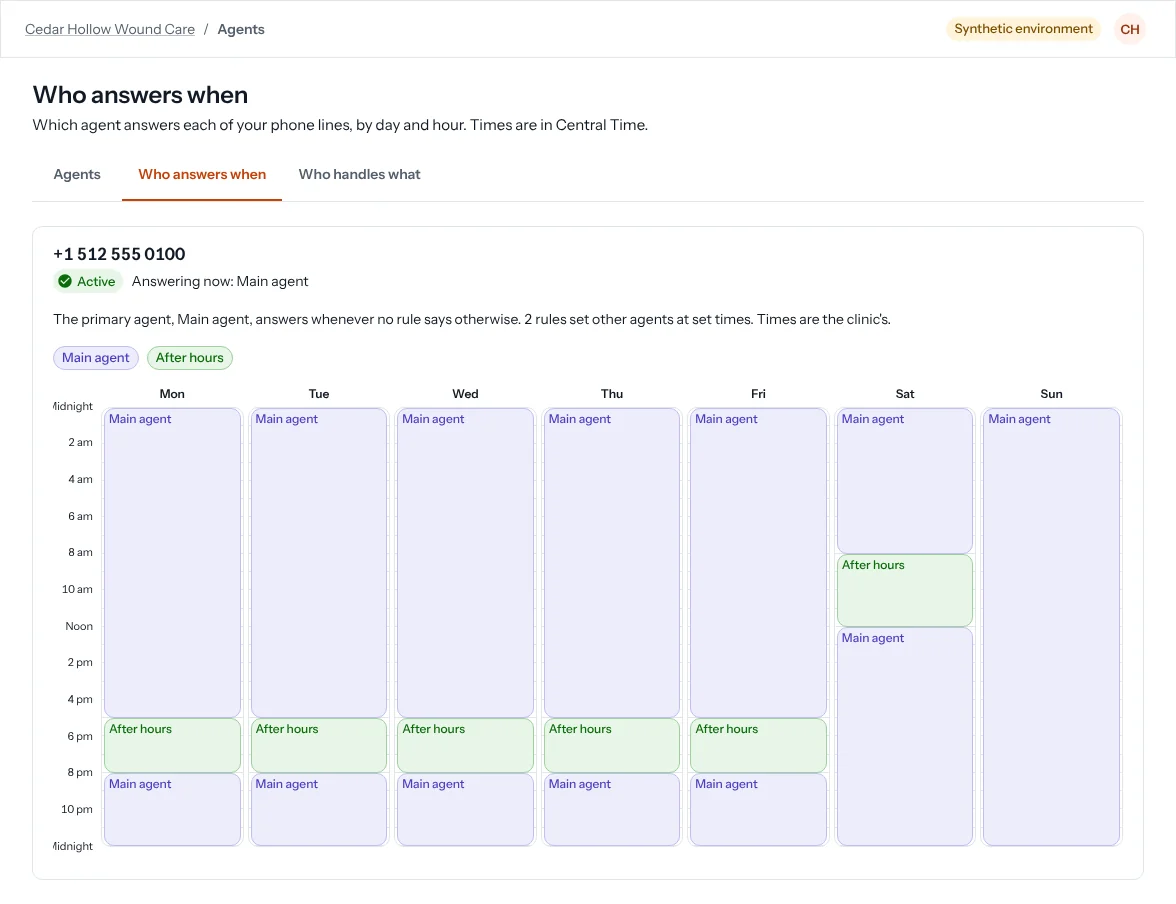
Start with a workspace and a use case, such as answering after-hours calls. Set the greeting, hours and who handles a callback.
Try the draft
Use the preview to check how the agent responds and where it hands off. Change the draft without changing what a live line does.
Check the line before launch
Verify the number, carrier and transfer destination, then get the client’s sign-off. Keep setup work separate from the decision to turn the line on.
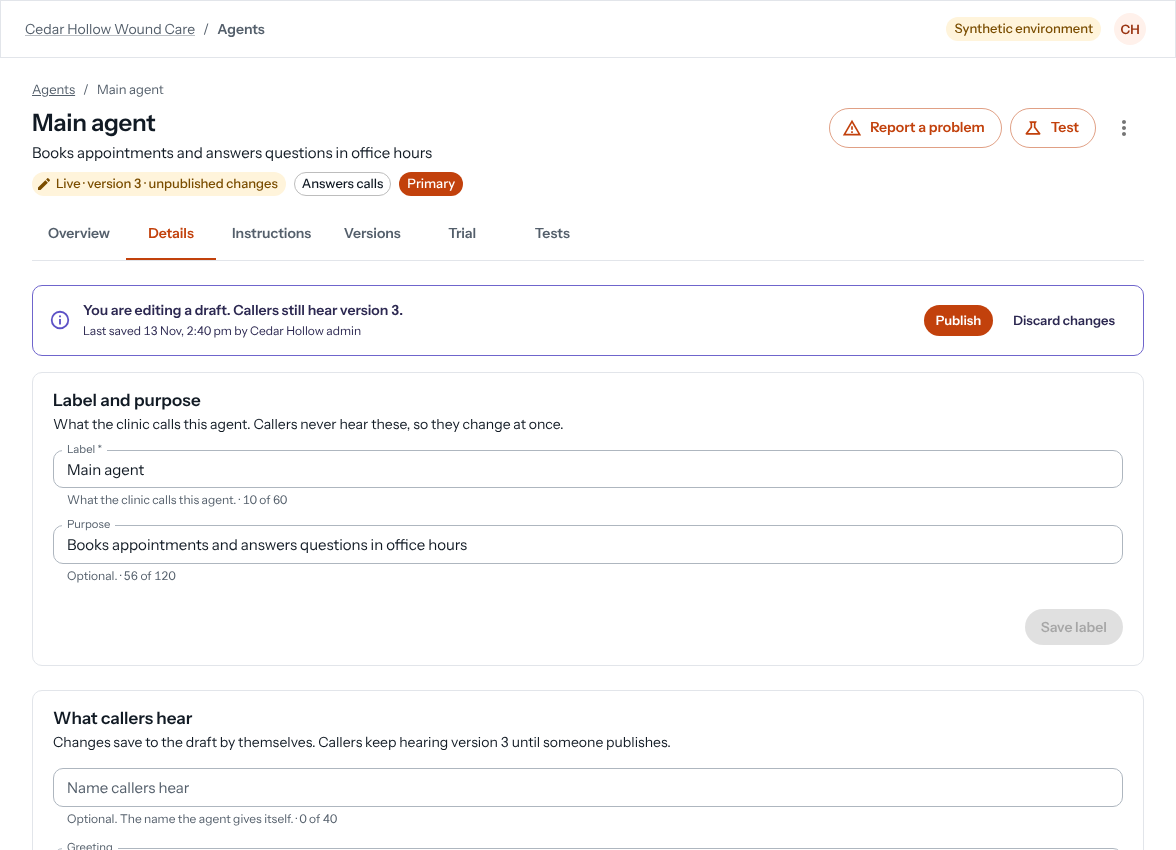
Sample walkthrough
An agency sets up an after-hours agent for a dental office
Made-up example. It won’t place a call or change any records.
First draft
The agent gives the office hours and offers a callback for questions it can’t answer.
Practice call
The agency and the office listen to the draft and check what happens when a caller needs staff.
Ready for sign-off
The team reviews the number, routing and staff coverage before activating the line.
Kindling AI for Agencies
Ask for a product walkthrough
Bring one client and one workflow. We’ll walk through the agent setup, what a client can see, and where your team handles support.