Voice AI for agencies

One voice AI platform. Every client in its own workspace.

Deploy voice agents for multiple clients from one agency console. Each client gets its own workspace, numbers and call rules.

The deployment deskSample data · No live calls
Sample call Cedar Hollow voice agent Follow-up for staff. Fictional line 202-555-0103.
Illustration · Agency console and separate client workspaces
Product previewSample data only · No live calls
See the product walkthrough

01 Agency rollout

From first draft to line review.

Start with one client and one call flow. Reuse what works for the next client without carrying over the first client’s settings.

  1. Set up the client workspace

    Start from a preset. Set the client’s greeting, hours, call rules and where staff should take over.

  2. Test the call flow

    Try the draft with sample calls. Check how it answers and hands off without changing what callers hear on a live line.

  3. Review the phone line

    Check the number, routing and transfer destination. Get the client’s approval before turning on service.

02 The workspaces

Two workspaces for two different jobs.

Agencies manage deployments across clients. Clinic teams focus on the work a call leaves behind.

For implementation teams and service partners

One console for all your clients.

Reuse your onboarding playbook without sharing settings across clients. See which launches are blocked, which lines need a check and who owns the next step.

Explore the agency platform
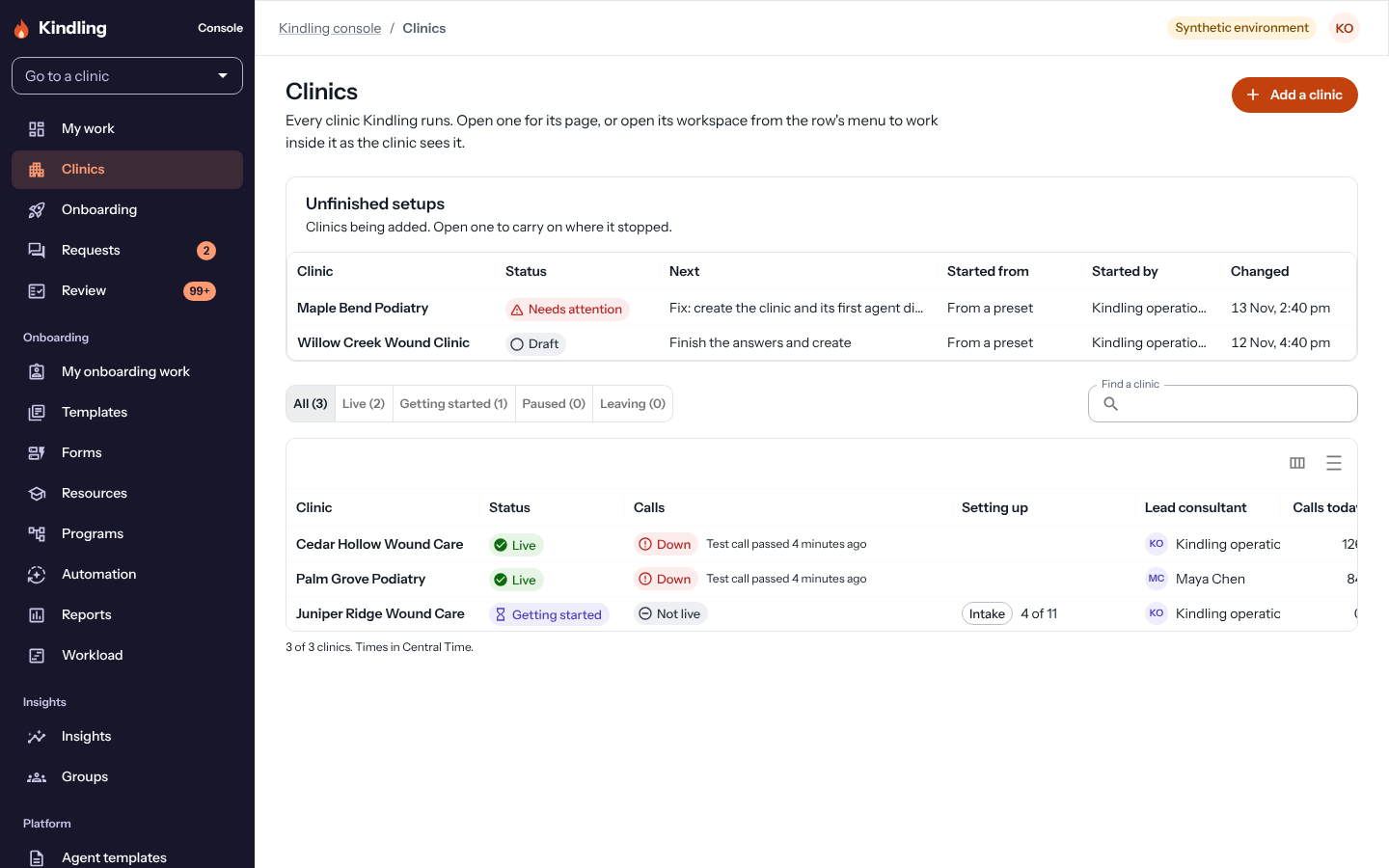
Agency console listing clinic workspaces and their setup and call statuses
Agency console · Clinic listSample data

For outpatient practices and front desks

Give the front desk a clear next step.

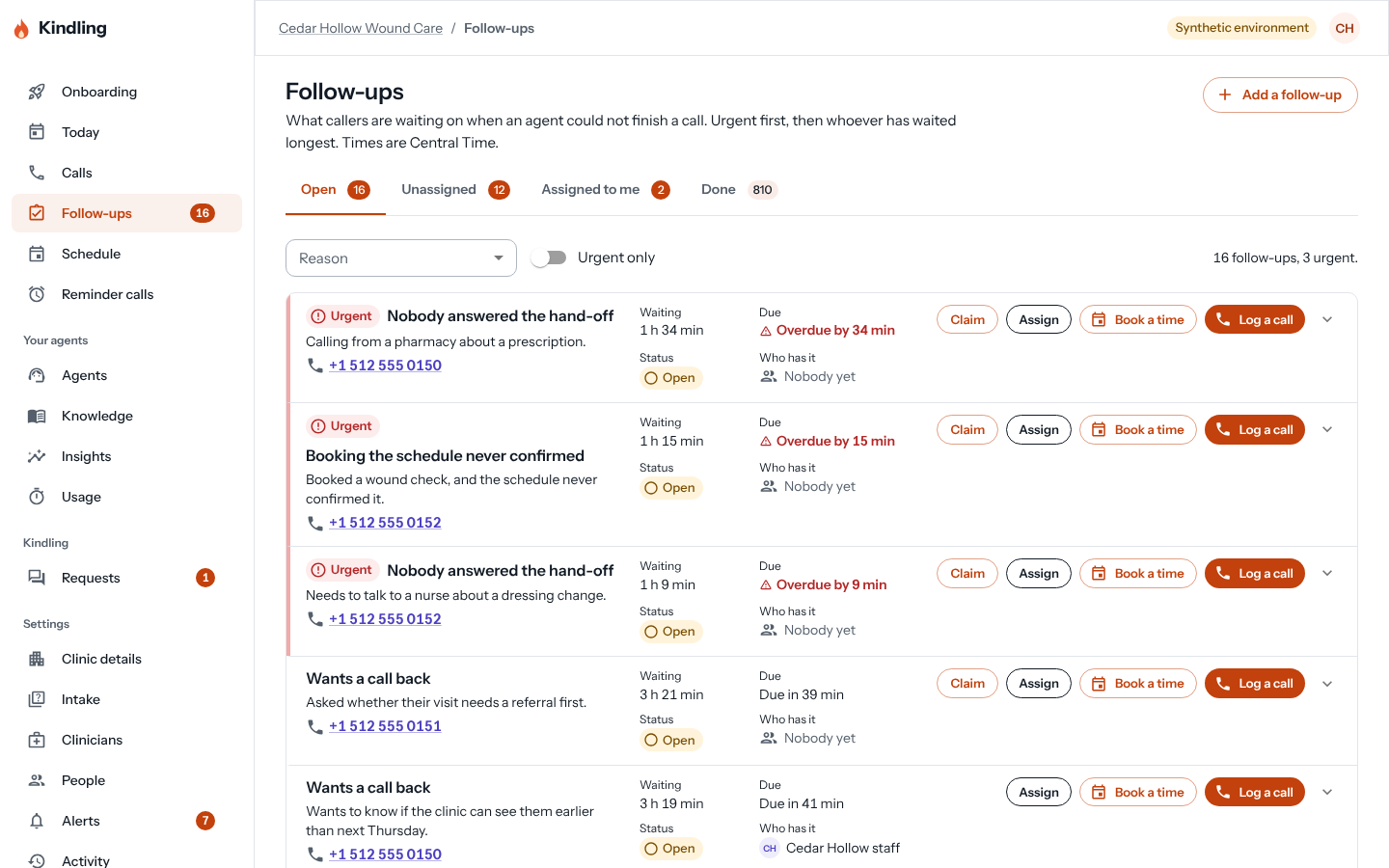
Handle routine calls and take appointment requests. When staff need to step in, they can see what the caller needs and who’s handling it.

Explore the clinic workspace
Clinic Follow-ups queue showing callback reasons, owners and due times
Clinic workspace · Follow-upsSample data

03 Product walkthrough

See what the work looks like

Actual Kindling screens, shown with sample data. Explore each workflow or open the full-size screenshot.

Agency console

From setup to support

01 / Clinic onboarding

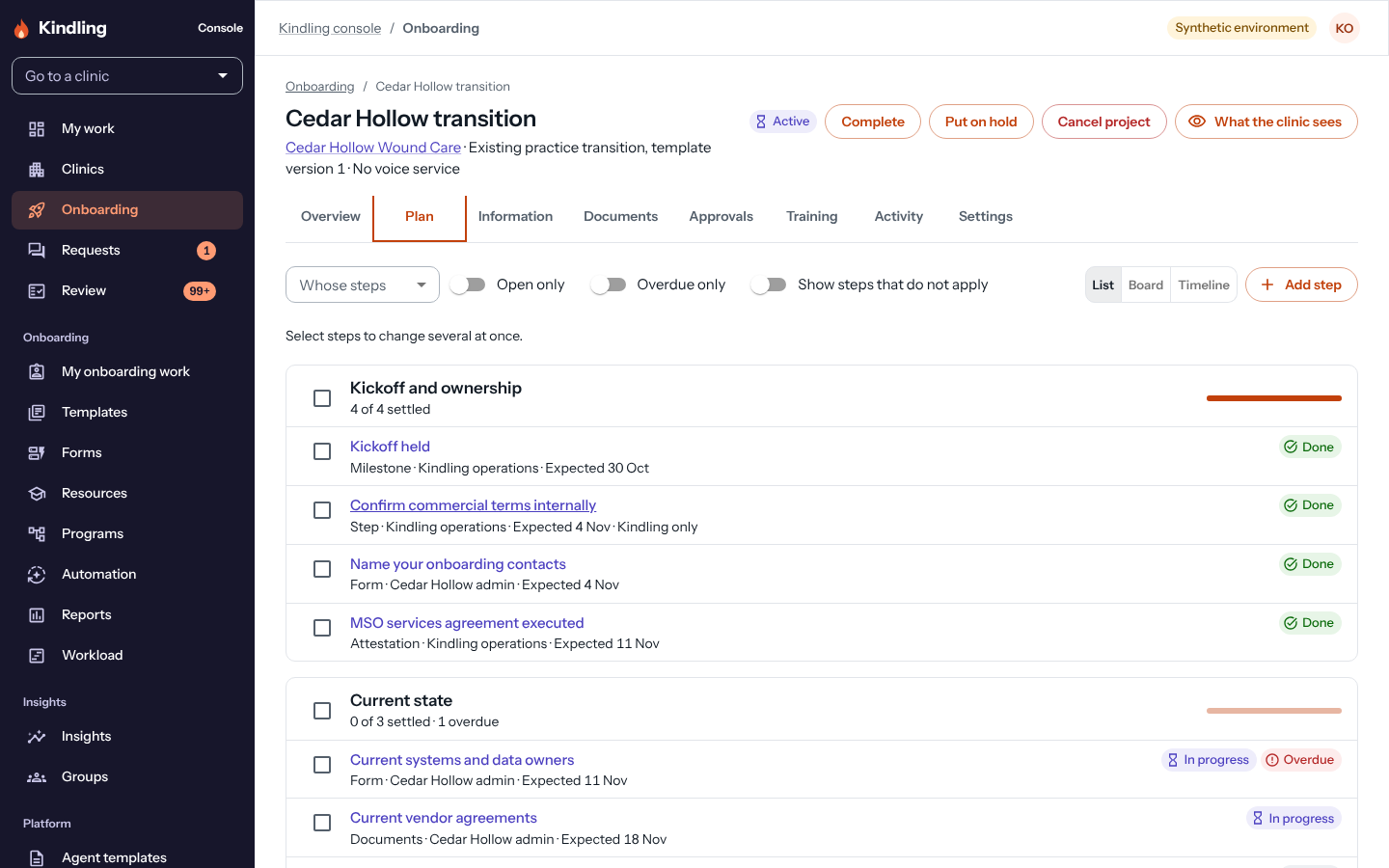
Keep each client launch on track

Open the launch plan to see who owns each check, what the clinic has approved, and what still holds up the rollout.

Explore clinic onboarding
Plan
See completed steps and open blockers.
Owner
Know whether the agency or clinic needs to act.
Readiness
Keep sign-off separate from switching a live line.

02 / Service operations

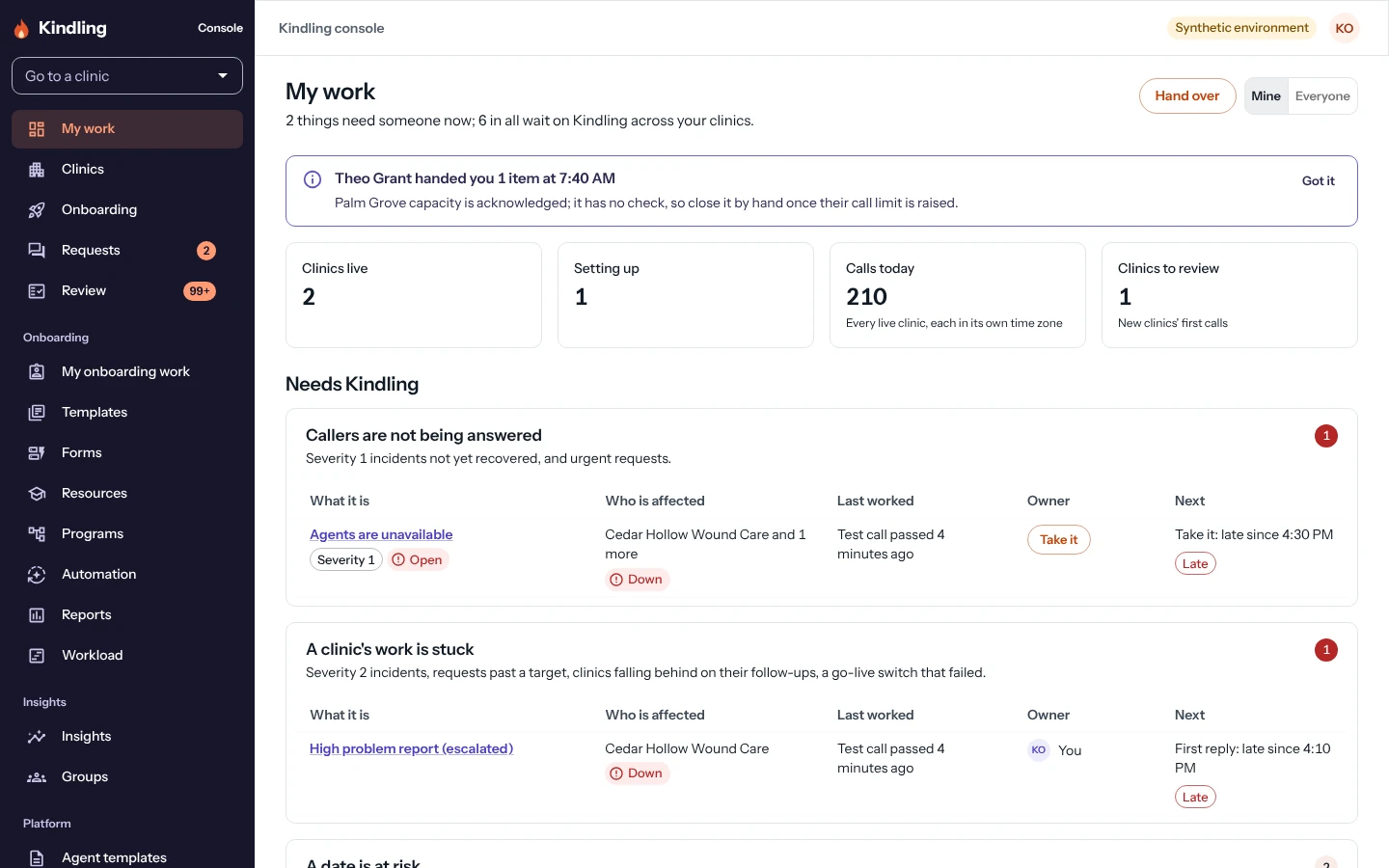
See what needs attention

Use the shared queue to find open work across the clients you support.

Explore service operations

03 / Support and incidents

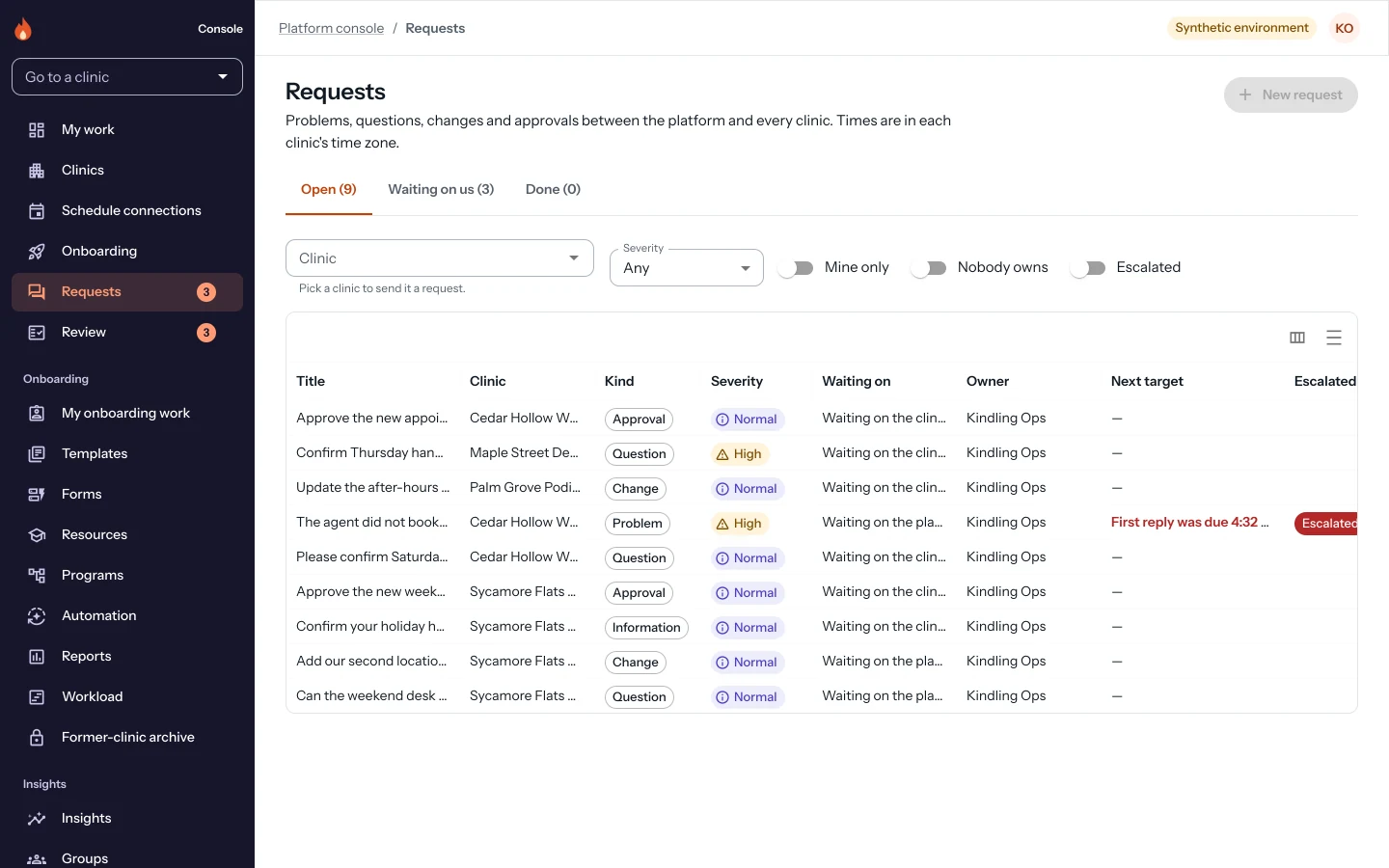
Pick up a request with its context

See which clinic needs help, where the request started and who’s handling it.

Explore support and incidents

Clinic workspace

From the first call to the next visit

01 / Phone agents

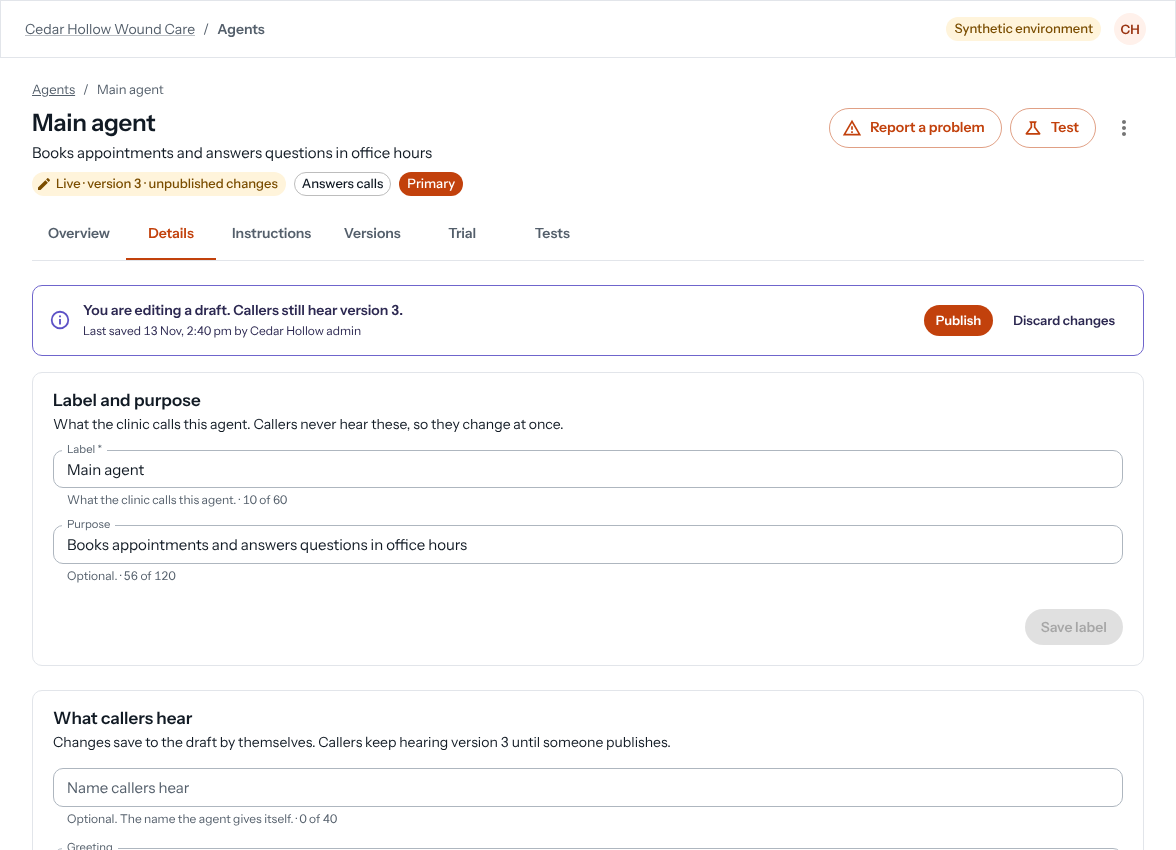
Review how your agent answers

See the draft greeting and voice settings before you publish changes.

Explore phone agents

02 / Scheduling

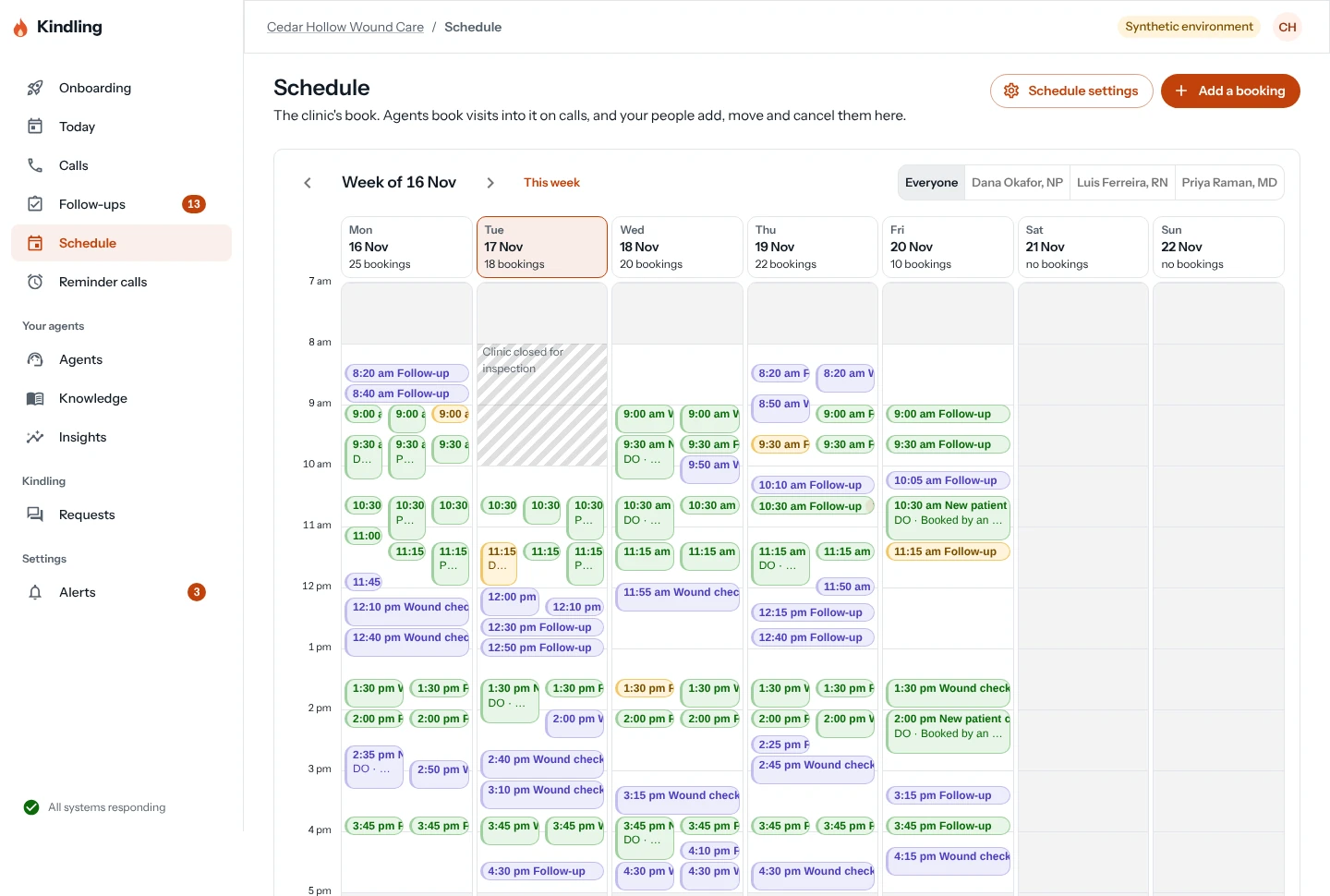
Give staff a clear view of the day

See what’s booked and where there’s room for the next appointment.

Explore scheduling

03 / Referrals

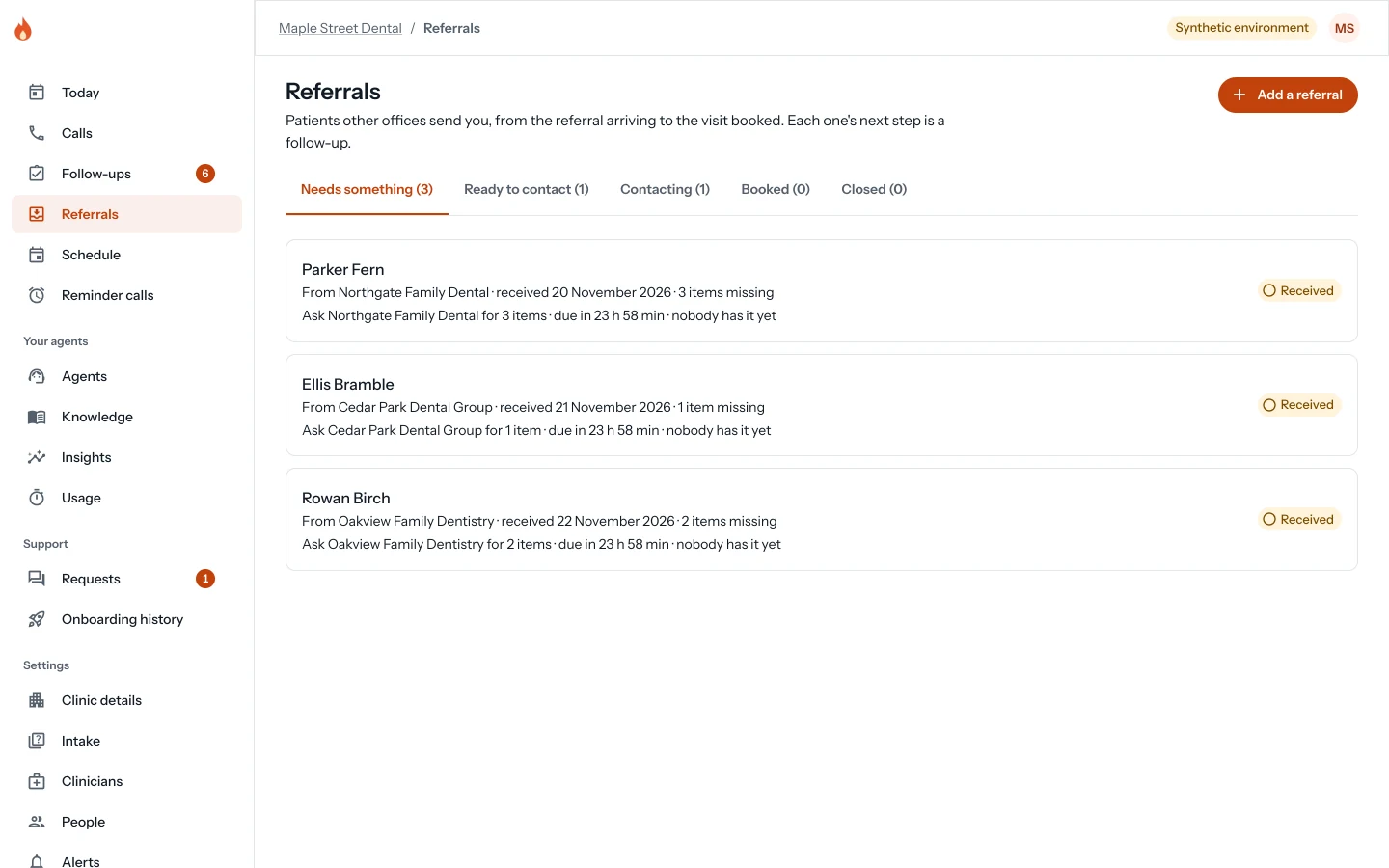
See what’s holding up a referral

Check what paperwork is missing and which referrals are ready for outreach.

Explore referrals

Product demos

Bring one client’s call flow.

Tell us what the agent should answer and when staff should take over. We’ll walk through it using sample data, including what your team would need before going live.

Request a demo

Business inquiries only. Please don’t send patient information.