 Kindling
Agency console
Run the agency console
Choose the right platform, triage the shift board and enter a clinic only when the task calls for it.
Who it’s for Platform owners and admins
On this page
Start a shift in My work
An agency is a platform in Kindling. Open its console and confirm the platform in the account menu. If you belong to several, choose the workspace you mean rather than reusing an unrelated clinic link.
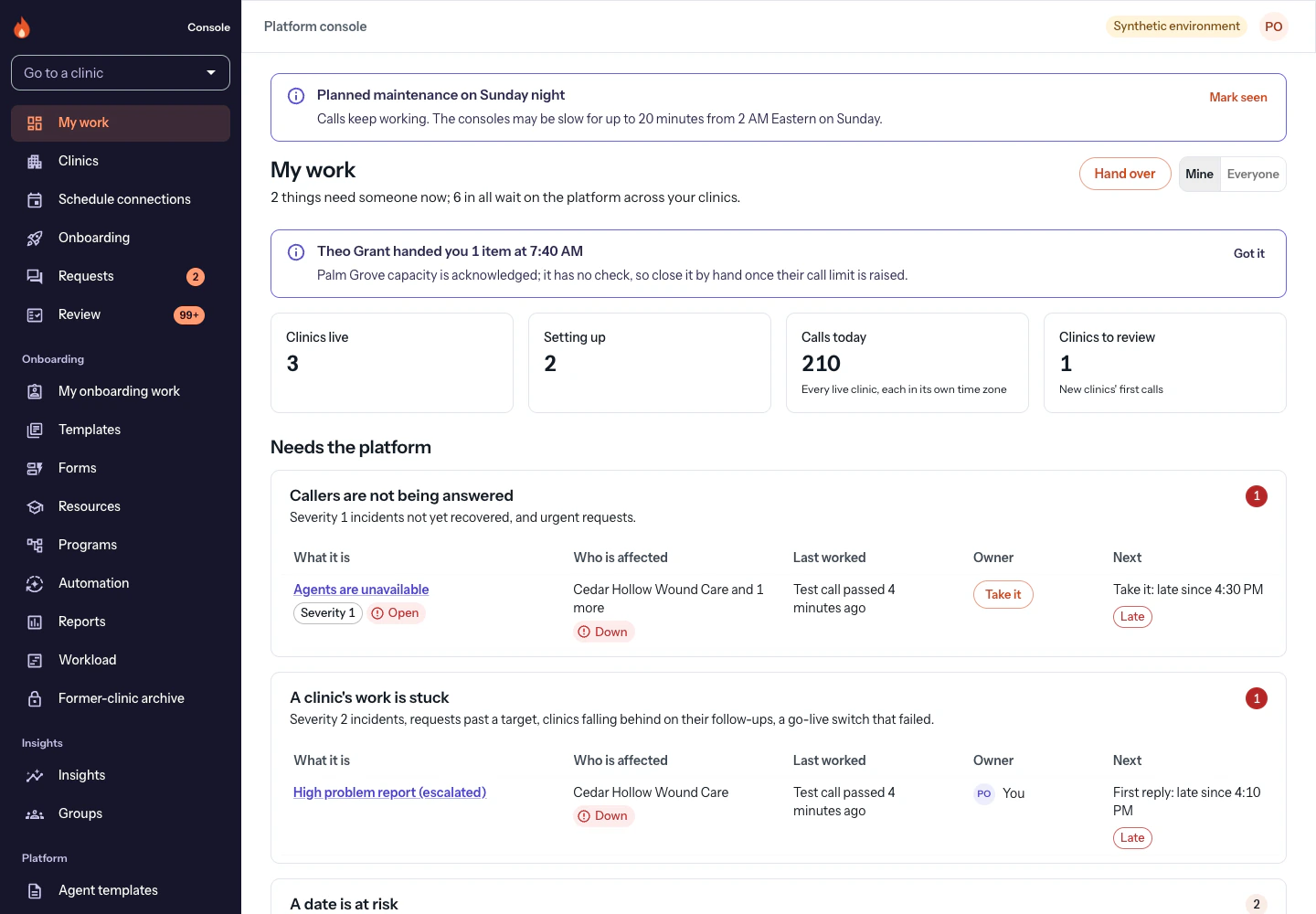
- Start with My work. Read current host notices, then review urgent answering failures and blocked clinic work before routine or clinic-owned tasks.
- A work row identifies who is affected, what last worked, the current owner and the next action. Open the underlying request, incident or clinic, or use Take it where offered. Switch between Mine and Everyone as needed.
- Use Hand over to pass your incidents and requests to another authorized operator and add a note. The receiving operator acknowledges it with Got it.
Inspect a clinic without opening every record
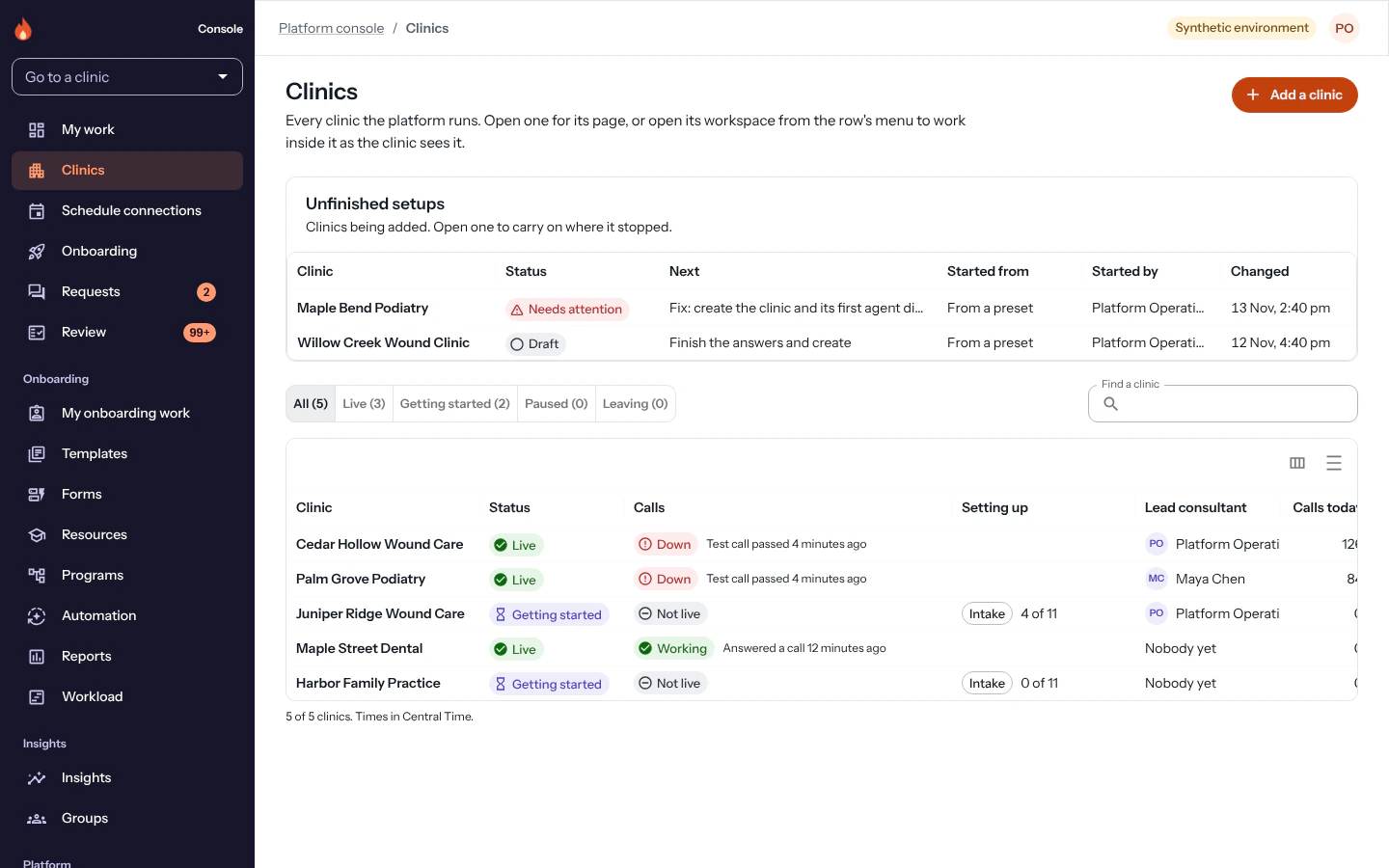
Open Clinics and choose a row. The clinic detail provides Service, Lines, Agents, People, Work, Usage, Billing and eligible management and record actions. Open workspace goes to the clinic dashboard. Agency access to clinic content is recorded in clinic activity. See what the clinic sees changes the operator’s presentation; it does not sign in as an independent clinic user.
Use Schedule connections from the console to compare where clinics keep their schedules, recent reads and writes, unresolved bookings and stale connections. Use People to search or filter by role or clinic, then open a person for memberships, recent sign-ins and sessions. Eligible console admins can end platform sessions or change access with an audited reason and fresh sign-in.
Work with groups without changing clinic access
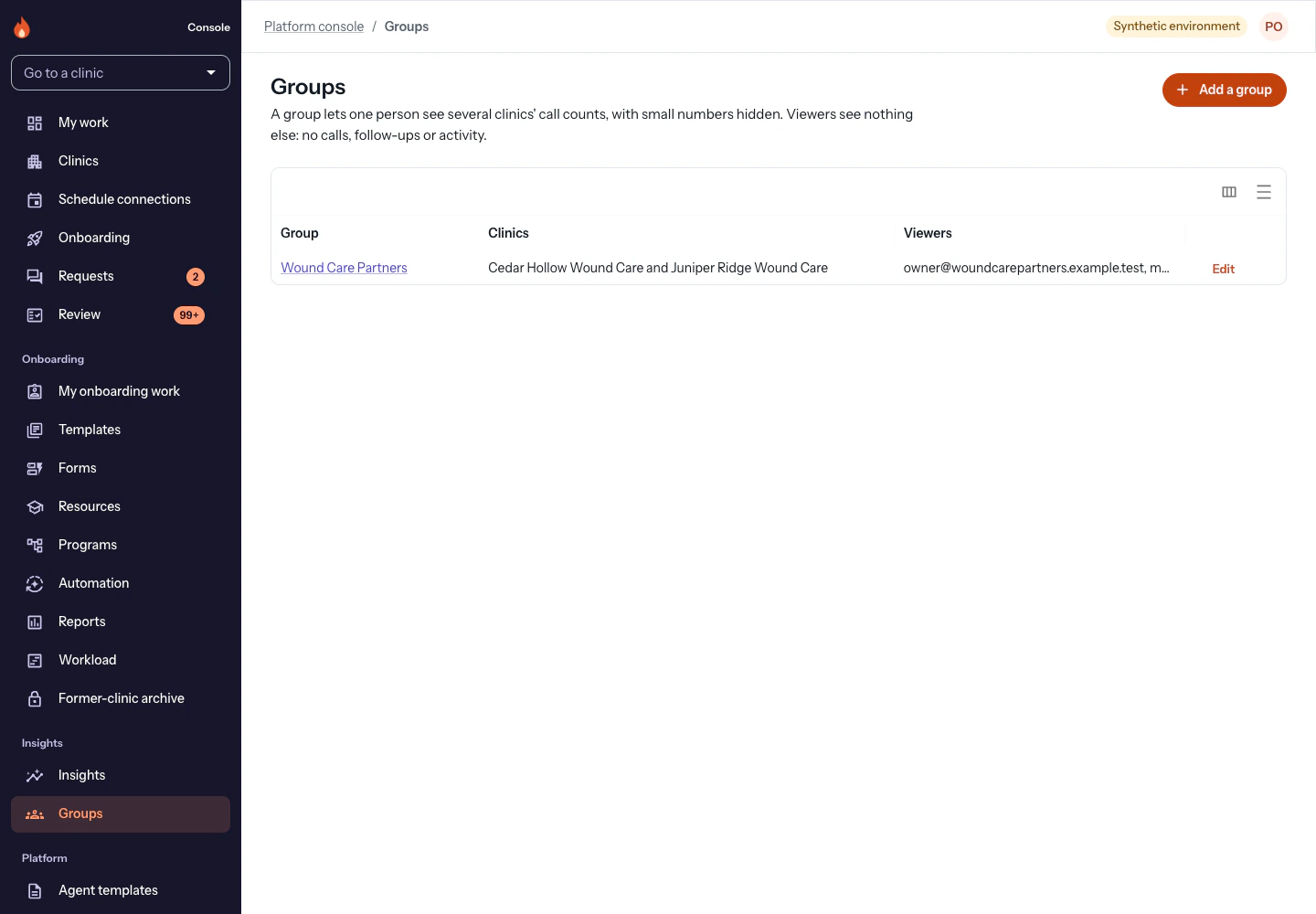
Groups and Insights bring together permitted clinic figures; small counts can be hidden. A group viewer sees group-level information. A manager can also work eligible configuration, onboarding and requests for group clinics and see Needs attention. That is not clinic membership. It does not grant access to patient records or permission to order numbers, change line routing, manage memberships, view billing or activate the clinic.
A group manager can submit a new clinic setup from a preset the agency offers. The agency completes or sends back that setup; the group manager does not order numbers, choose the payer or make the clinic live.
Review selected calls
Open Review to work calls selected by rules such as a missed booking, unsuccessful action, request for a person, repeat call or new-clinic sample. Read why the call was selected, then record Fine or Needs attention with a reason, or skip without a verdict. Follow the suggested fix to knowledge, instructions or routing. Keep as a test needs saved Needs attention reasons, a linked agent and a successful test-list load. Fine or Skip do not expose it. The saved verdict does not notify the clinic; use Open a request after Needs attention to start a clinic-facing thread.