 Kindling
Agency console
Work the clinic billing ledger
Follow a charge from payer and plan selection through metering, review, issue, payment, refund or void.
Who it’s for Platform owners and admins responsible for clinic billing
On this page
Set the payer, access and effective plan
- Open Billing → Accounts → New account for a shared payer, or open the account created with the clinic. Review the name that prints, billing contacts, payment terms and sales tax. In Clinics covered, use Move a clinic here and set From. One payer covers a clinic at a time; the previous coverage ends the day before. If a date is refused, check the clinic’s billing time zone and any future-dated coverage.
- On Who sees the whole account, grant access only to the right people. A named account member sees full invoices across its clinics and can pay when Pay is available. An ordinary clinic admin or auditor sees only their clinic’s share unless granted account access. The auditor role alone does not grant Pay. A person explicitly listed on the payer account can pay where available, regardless of their clinic role; an eligible admin of the only clinic on an account can also pay. Clinic views depend on the visibility switches in Platform → Settings → Billing.
- Open Billing → Plans → New plan and start its first version. Set the pricing and run a worked example before publishing. Published prices are not charged until a clinic is put on the plan.
- In the account’s Plans, choose Put on a plan, Change plan or End. Select the published version and dates; inspect any free-until period or price overrides. A published version is fixed. Start a new version from this one to change pricing. A later published or archived version doesn’t rewrite live subscriptions or old bills; move clinics individually from their account.
Choose what to charge and test the saved plan draft
- Set the monthly fee per clinic and included minutes as a whole number. Price each further minute above $0. Under What counts, Talk time measures time with an agent and excludes clinic staff time after handoff; Call time measures the whole call from answer to end.
- Set whether Reminder calls count with the rest or have a price of their own, which must be above $0. Set the number of included phone numbers as a whole number and a monthly charge for each extra number. The setup fee is charged once on the clinic’s first invoice. A monthly minimum tops up a month that falls below it; use zero for none. Enter nonnegative amounts and fix any highlighted field before publishing.
- In A worked example, enter whole Talk minutes and Phone numbers, then choose Work it out to read the line items and total for a sample full month. The example uses the saved draft, not unsaved edits. Save draft and run it again to test your latest prices. After reviewing, choose Publish and complete recent sign-in.
The editor illustrates its three Rounding choices using two calls of 1 min 10 s and 2 min 5 s:
- Each call to the second, then round the month up: 3 min 15 s total, billed as 4 minutes.
- Round each call up to the next six seconds: 1 min 12 s plus 2 min 6 s, or 3 min 18 s total, billed as 4 minutes.
- Round each call up to a whole minute: 2 minutes plus 3 minutes, billed as 5 minutes.
Separate measured usage, estimated cost and billed amounts
- Open Billing → Usage and choose the month and any group or account. Compare Talk minutes, Reminder minutes, Estimated cost and Billed. Tests, previews and assistant use are not ordinary clinic call charges. Missing rates make the total estimated cost unavailable, not zero. Under Cost rates an authorized operator can add a rate effective tomorrow or later in UTC; it does not reprice past estimates.
- Compare Reconciliation when carrier records exist. A missing import is not a zero difference and a difference is not proof of overbilling. The demonstrated import is synthetic; it does not establish that production carrier statements can be imported.
- An open clinic-local month is still accumulating. After month-end it settles for a configured window (three days by default) before the system closes and seals the billable figures. Usage that arrives after close can be marked late in the next open period without rewriting the sealed month. Use this month’s account preview as a projection only.
- Use Billing → Statement and Plan and limits for what the host charges or grants the agency. The estimate on Statement and the clinic invoice ledger are separate relationships.
Review, recompute or correct a draft
- Open Billing → Invoices → To review and filter Month. Read any flags before opening the draft. Verify the payer and every clinic section, then open Where this comes from on a rated line for the month’s usage, linked clinic Usage and any eligible download.
- Recompute recalculates a draft’s charge lines from the month and plans while keeping manually added adjustments and credits. After recomputing, recheck tax, line sources and total. Recompute and line edits are not available after issue.
- If the invoice says late usage needs a payer decision, pause. Ask the agency billing owner to verify the payer, clinic coverage and the applicable billing period. An unresolved decision blocks rating and both manual and automatic issue. An adjustment or repeated retry is not a workaround.
- Use Add an adjustment or credit, choose the clinic or whole account, enter the amount and write a reason the payer can read. A credit reduces the amount owed; it is not a repayment. Remove a wrong adjustment or credit while still in draft. Confirm the new total before issue.
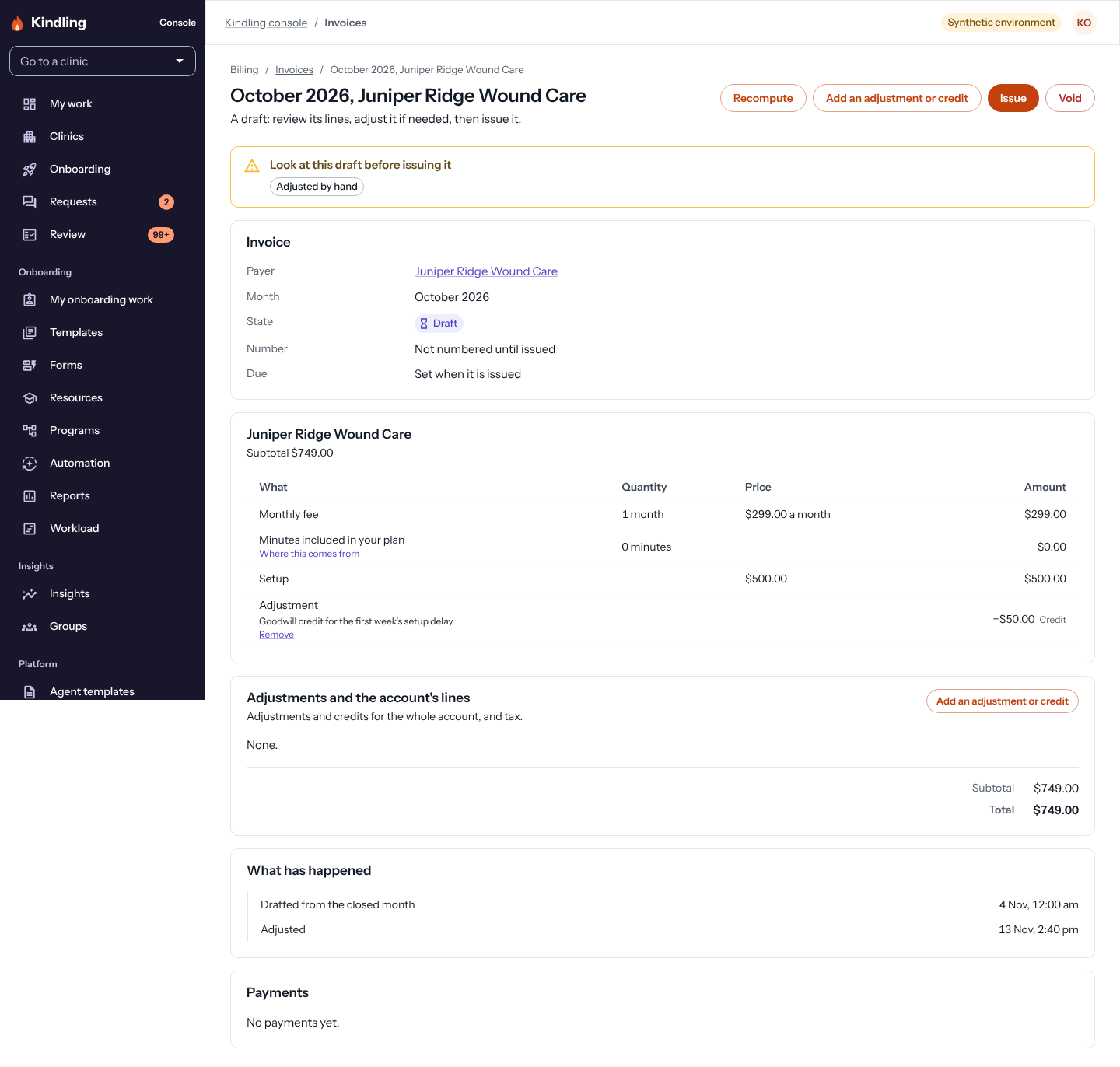
Synthetic dashboardReview the fictional payer, lines and adjustments before issuing the draft. The amounts are not prices or commercial terms.
Full size Issue, send or void without conflating the actions
- Use Issue after reviewing the total and payer; complete recent sign-in. Issue gives the invoice its number and due date and starts PDF preparation. If Download PDF says it is being prepared, wait and check again. Issuing alone is not emailing or collecting money. If Issue drafts without review is on, automatic issue waits until every covered clinic’s period has closed and only issues a clean draft. A clinic has no plan, Adjusted by hand and Usage from an earlier month are reasons to check To review.
- Use Send on an issued invoice after checking its billing contacts and provider. Under Manual it emails the PDF only if Email invoices to payers is on. Under a payment provider, Send presents the invoice to the provider and requests email only when that switch is on. An issued invoice remains fixed; fix a mistake through a later invoice, or void it before there is a successful payment.
- Use Void on an eligible draft or issued invoice with recent sign-in and a reason the payer will see. The void record remains, owes nothing and never reuses its number. A paid invoice or an issued invoice with a successful partial payment cannot be voided while the payment stands. Resolve the payment first; don’t retry a refused void as a substitute for a refund.
Record payment or refund and confirm the remaining balance
- Use Record a payment for money already received outside the platform. Enter an amount no higher than the remaining balance and an optional check or bank reference, not a caller number. A partial payment keeps the invoice Issued; payment in full makes it Paid.
- Pending provider payment is not money received. A failed attempt does not reduce the balance. For an eligible succeeded payment, return the money through the original method first. In Payments, Record refund records the entire selected payment only; it changes the ledger, not the money transfer. For a partial provider refund, use provider reconciliation instead. If a provider event already recorded the refund, don’t record it twice. A refund can reopen the invoice as Issued.
- Open What has happened and Payments to verify state, method, amount and reference. A wrong or stale control can be refused; reload and inspect the current balance and payment before acting again. A credit on an invoice, a refund of a payment and a void are three different actions.
- Platform → Settings → Billing separates clinic visibility, invoice email, the invoice issuer, payment provider and Real payments. Manual is not a hosted checkout; Fake is available only in a test stack. A live Stripe payment requires provider availability, current configuration and an authorized payer. Pay, if offered, leaves Kindling for the provider; a failed check can withhold the link.