 Kindling
Clinic workspace
Calls and follow-ups
Trace a call to its actual outcome, then assign, retry or resolve the follow-up it left behind.
Who it’s for Clinic front desk and administrators
On this page
Read what the call produced
- Open Calls. Use All, Needs a person, Booked or confirmed, Nothing came of it or Reminder calls, and open Filters when you need to narrow the list further.
- Open the call and start with At a glance. Follow the linked visit or follow-up to see its current state; the call record distinguishes a request from a confirmed booking.
- Use Step by step and Details to see how the call was handled. Use Listen and read only when an authorized recording or transcript exists.
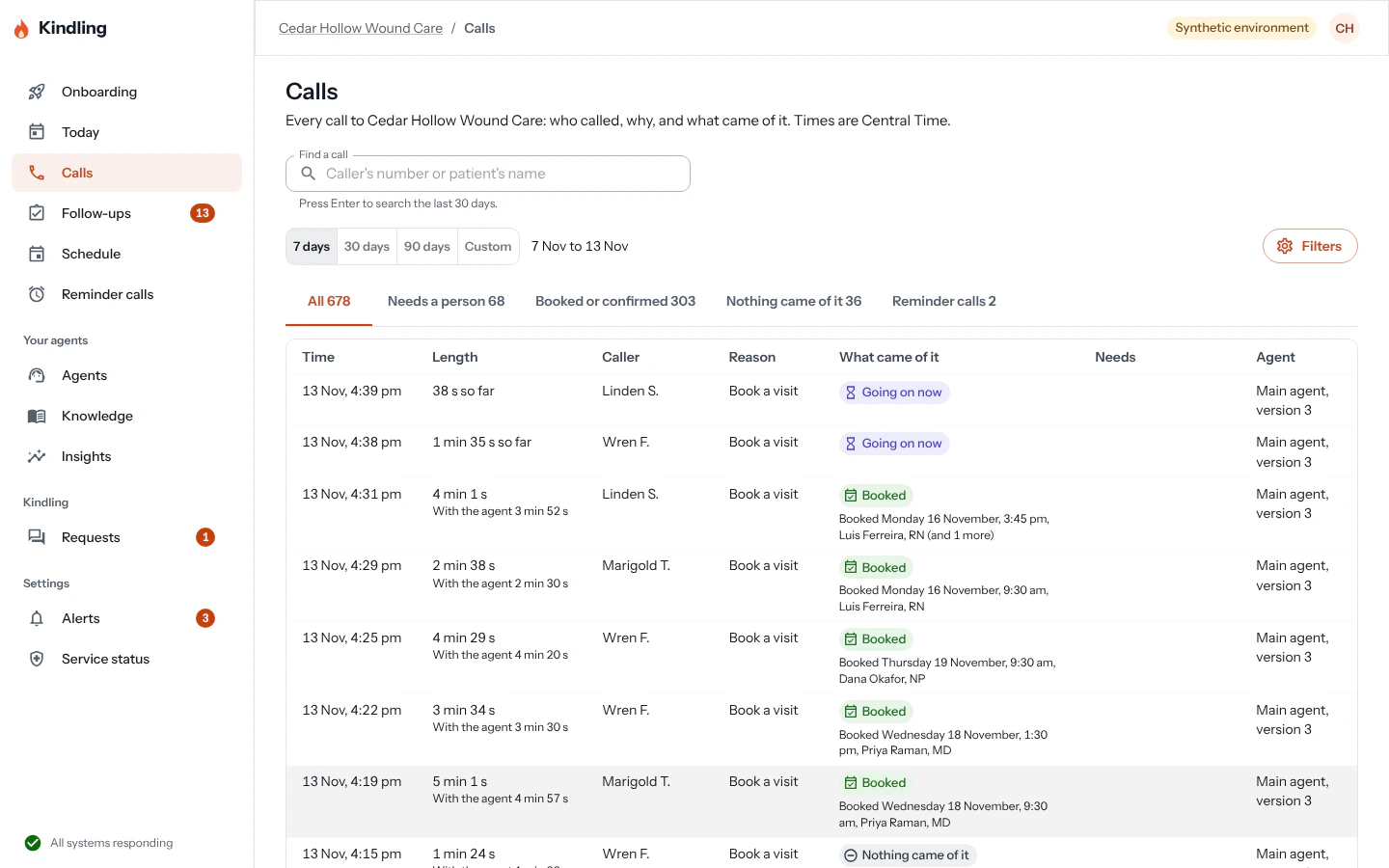
Synthetic dashboardThe clinic’s Calls list shows outcomes and what still needs a person.
Full size 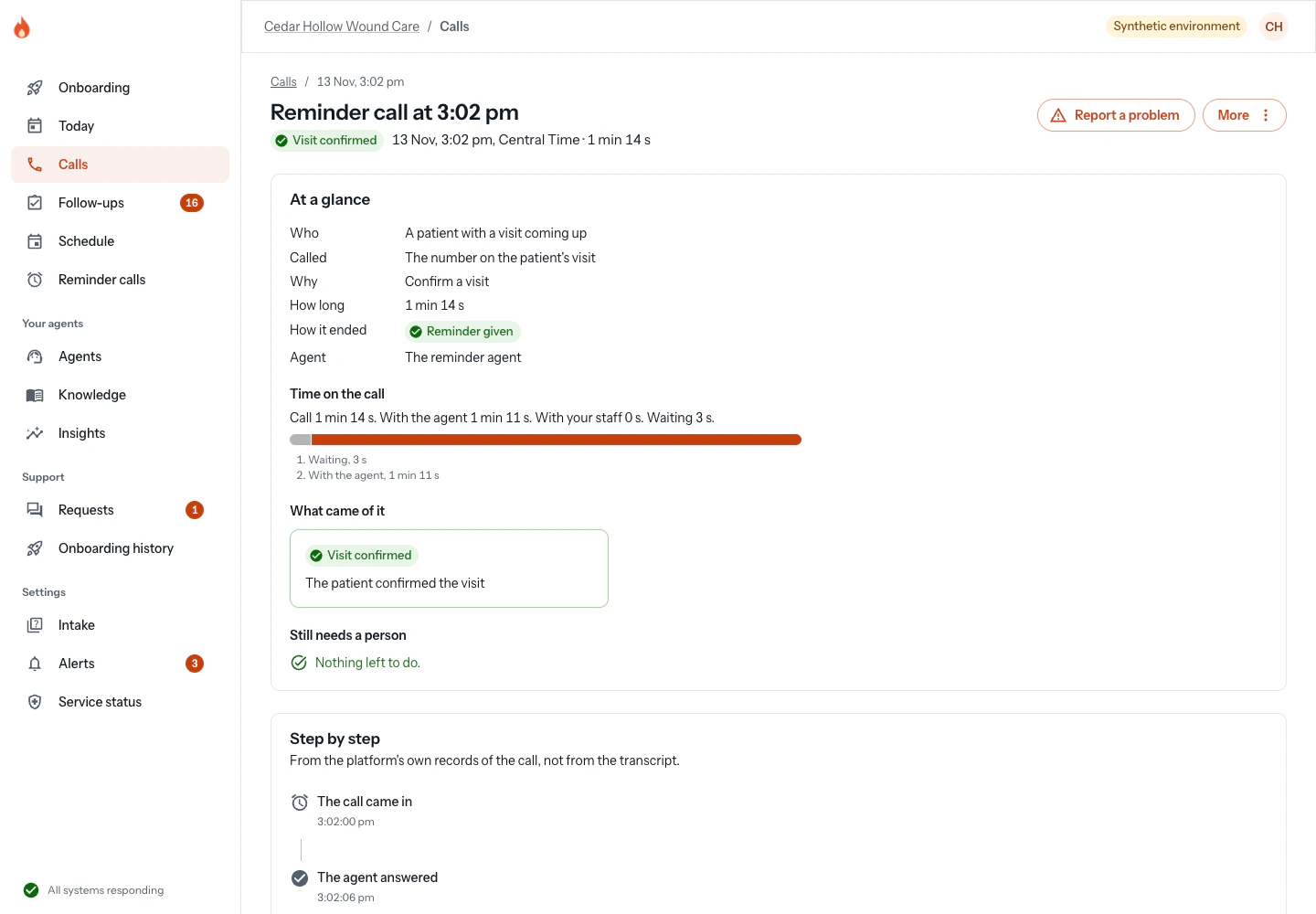
Synthetic dashboardThis fictional reminder record shows a structured visit confirmation, without recording or transcript playback.
Full size Work the Follow-ups queue
Use Open, Unassigned, Assigned to me or Done. An unanswered transfer, a callback request or a booking the schedule did not confirm can put a follow-up here. A missing callback number stays missing; an urgent follow-up is not a promise that staff can dial the caller.
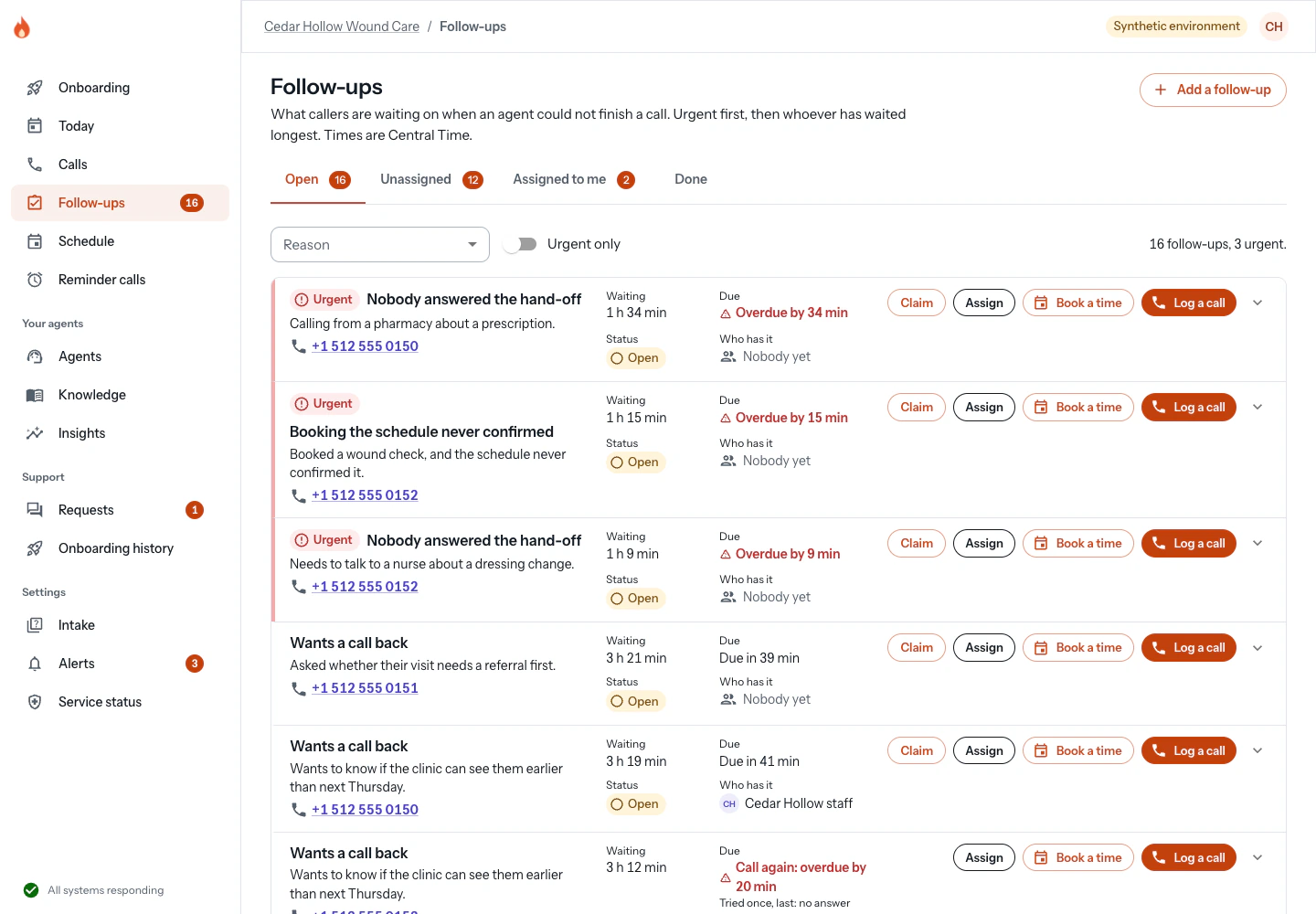
Synthetic dashboardThe clinic’s Follow-ups view groups open, unassigned, assigned and completed work.
Full size - Claim a follow-up nobody owns. Clinic staff can assign to themselves or return it to Nobody. Clinic admins and agency operators can assign it to a named colleague.
- Use Log a call to record Reached them, Left a message, No answer or No call needed any more. A message or no answer lets you plan another attempt or stop with a reason.
- Use More about this follow-up for the assignment history and source call. When there is a pending visit, Book a time settles that visit instead of creating a second one. Afterward, log the outcome unless the workflow has already closed the follow-up.
Find a call or a group of calls
- Clinic staff and admins: in Calls, enter the number or patient name in Find a call and press Enter. It starts with the last 30 days; widen the search using the on-screen control when the first search does not find the record. Agency views mask caller names; auditors and group managers do not have the clinic Calls view.
- Pick a view, then use Filters and the date range. Available filters include Reason, Outcome, Agent, Line, Kind, Came from, direction, Not answered by the agent and Needs follow-up. Some filters appear only where the relevant data or role is present. Clear filters or remove a chart’s filter chip to return to a broader list.
- Open a row in the side panel, or use Arrow keys and Enter on the desktop list. On a phone the call opens in a sheet. Use the full call page when you need to follow its visit, follow-up, timing, history or support links.
Read timelines and access retained media
- Open the call and compare At a glance (what the call produced and the records’ current states), Step by step (events, not dialogue) and Details (caller, consent, knowledge and earlier calls where available). Open What the agent was told when available to see the release instructions rather than the caller’s words.
- Read Time on the call for time with the agent, with staff and waiting. The in-progress view shows what is known so far. Where the time is estimated the page marks it and gives a reason.
- If Listen and read shows retained media and you have access, use Play recording to request a short-lived link for your signed-in account and current clinic access; a timed transcript turn or key step can seek to that point. Playback does not include the staff side of a hand-off. The audit records when the server makes audio available, not proof someone heard it. Check whether the transcript is partial, unknown, held, expired or deleted before relying on it. The agency’s call screen does not display the clinic transcript.
- Clinic admins acting as the clinic’s privacy lead: use Release for playback only if the caller asked for the quarantined recording to be kept or the clinic must keep it. When the action is offered, give a reason and complete fresh sign-in. The release cannot be undone. It does not recover deleted media or authorize future recording. The ordinary inbound path saves no audio, transcript or AI summary.
Report a call or open its export
- Choose Report a problem to open a request tied to the call and get a reply from the agency. For technical triage without a support conversation, choose More → Flag for engineering, pick the category and choose Flag call. Engineering receives the call references and timings, not what was said.
- If you are a clinic admin, More may offer Export the transcript, Export intake and bookings or Place a legal hold. Choose the applicable option only if authorized. Export links go to Exports with the call selected; a hold keeps eligible records beyond their ordinary deletion date.
Add a manual callback
- Clinic staff and admins: in Follow-ups choose Add a follow-up, say What it is about, enter Number to call with its country code, and choose Due on and By in the clinic’s time zone.
- Choose Add it and check the new item in Open. It is a staff callback, not a scheduled outbound call. Assign or claim it and record attempts exactly as you would for a call-generated follow-up.
- If the case is a referral and that feature is enabled, use Start a referral from this on an eligible follow-up instead of making a second outreach task.
Record attempts without closing the wrong work
- Choose the Open, Unassigned, Assigned to me or Done tab and narrow by Reason or Urgent only. Done loads newest first with a control for older items; a direct link can still open a follow-up outside the currently loaded list.
- Claim an unowned item; if someone took it first, refresh and coordinate with that owner. Use Assign to change ownership explicitly. Staff see Me and Nobody; admins and agency operators can pick a colleague. More about this follow-up shows ownership history and opens the call.
- Log a call and choose Reached them, Left a message, No answer or No call needed any more. After a message or no answer choose Call again and give the next time (up to 14 days ahead), or Stop trying and say whether the number was wrong or the person could not be reached. Read the row’s next attempt and attempt count after saving.
- If a pilot is active and the action resolves the item, optionally record About how long did this take? or Skip. Logging an attempt does not book or confirm a visit, and a local or connected booking does not automatically resolve the follow-up. A successful Record the booking for a hand-managed outside book is an exception: it closes the linked follow-up as Booked. Use the linked visit or Book a time for booking work.
- When the assistant is available, tick the relevant open rows and ask it to act on them together. Check its proposal before approving: a logged attempt or resolution cannot be undone. Use Clear selection when the intended set changes.