 Kindling
Clinic workspace
Agents, drafts and knowledge
Edit what the phone agent says, test a draft, publish a deliberate change and manage its knowledge.
Who it’s for Clinic administrators and agency operators
On this page
Edit without changing what callers hear
- Open Agents and pick an agent. In Details, edit the name callers hear, greeting, voice or knowledge sets. Each change saves to the draft and shows how it differs from the live version.
- Open Instructions to review the instructions in use. The agency controls which approved instructions are assigned. The voice selector shows which default applies; play a voice sample only if one has been provided.
- If the live version or another person’s draft changed while you edited, review the comparison before reapplying or discarding your changes.
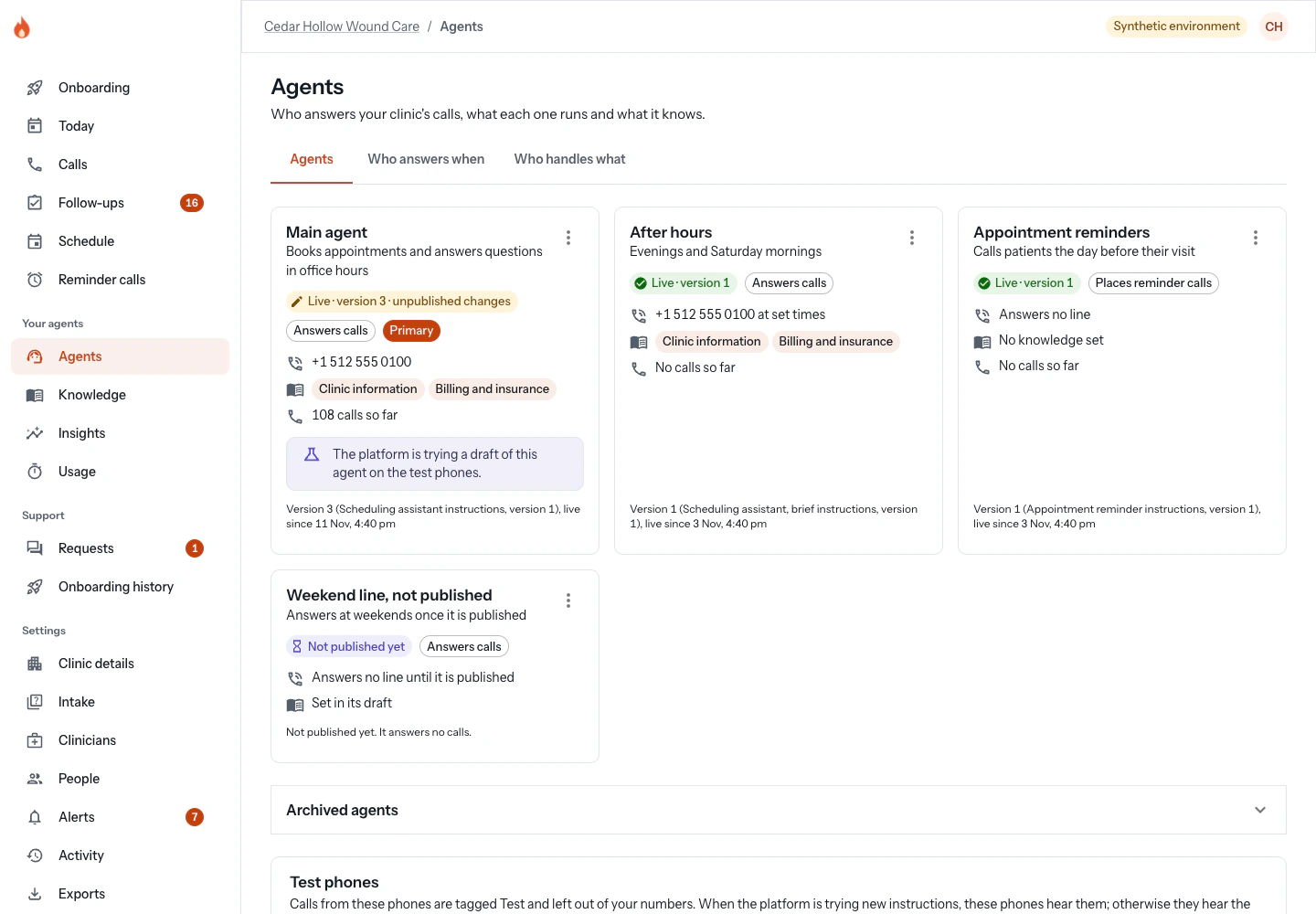
Synthetic dashboardThe clinic’s Agents page shows the published version and any unpublished changes separately.
Full size Test, publish and compare versions
- Test opens a browser voice panel where enabled. Choose Draft or Live and optionally a simulated booking condition. It can show temporary captions and what the agent would have done; it does not create a real booking.
- Trial lets an agency operator put one draft snapshot on approved test phones. Other callers stay on the published version. New edits do not change that snapshot; restart the trial to use the updated draft.
- Tests contains expectations saved from reviewed calls. Check against my last test session uses your latest ended browser test for that agent and lists Passed, Missed or Not checked yet.
- Publish shows the proposed differences, affected answering locations and test status before you proceed. Versions lets you compare releases and, where authorized, go back to a previous one.
Maintain knowledge sets
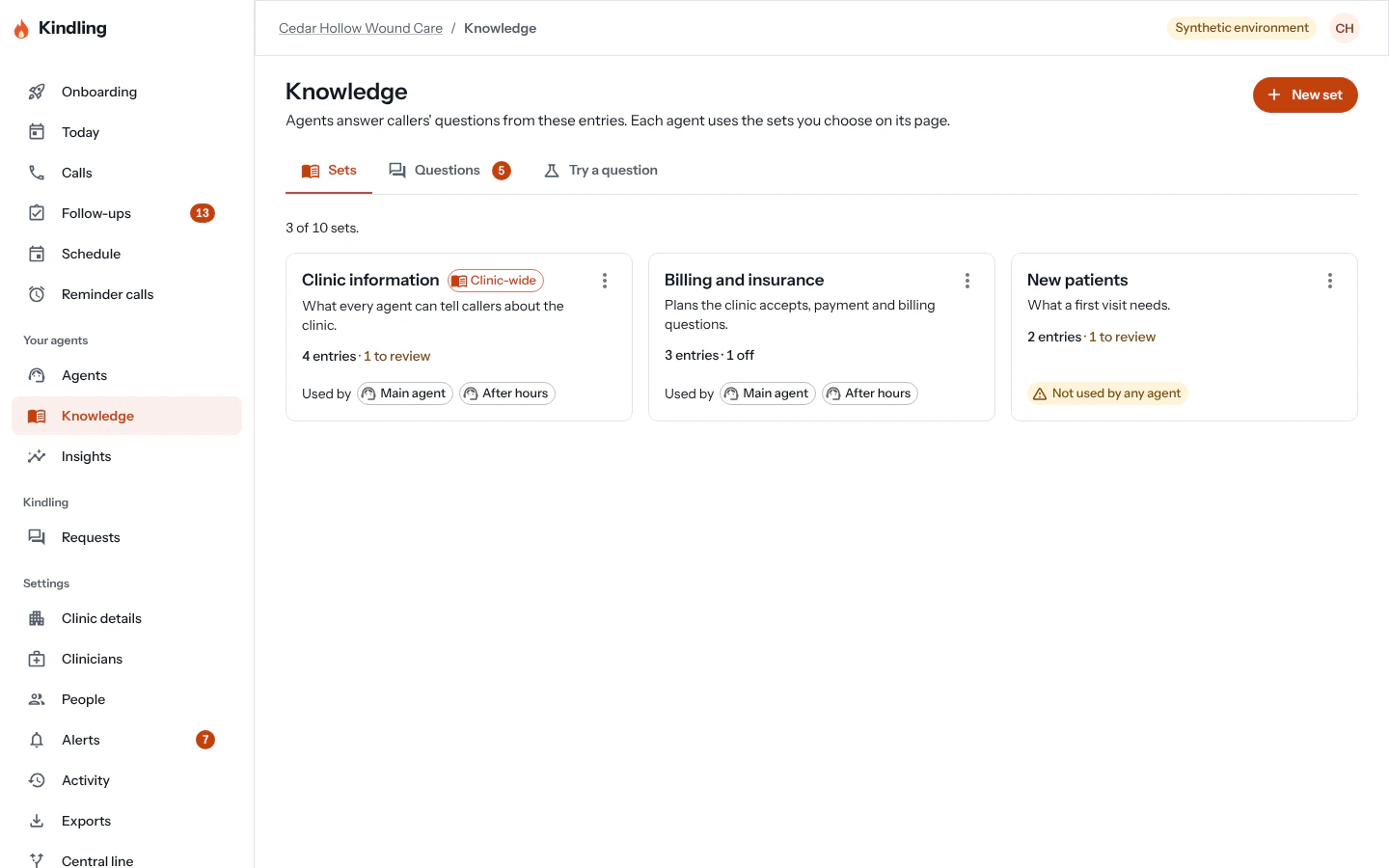
Synthetic dashboardKnowledge sets show which clinic information is available to the agent.
Full size Open Knowledge, choose a set and check which agents use it. Authorized editors can add or update clinic information and review Questions for gaps. Use Try a question with a fictional caller prompt to check what the set retrieves before attaching it to a draft. Attach the relevant sets in Agent Details and review them when publishing.
Agents → Who answers when shows line defaults and weekday rules. Who handles what shows the configured staff destinations and fallback. Routing settings are separate from the agent’s draft.
Create, inspect or update an agent draft safely
- Open Agents and pick an agent to see Overview: Who it answers, What it knows, Last changes and recent figures. Staff, auditors and group managers can read permitted configuration; clinic admins and agency operators can edit agent drafts.
- Agency operators can use New agent to create an inbound or reminder agent. A clinic admin can use More → Duplicate for an eligible agent in the same clinic; only the agency can copy across clinics, without their original knowledge sets. Both start unpublished. The routing receptionist cannot be duplicated this way.
- Agency operators can use More → Make primary for a published inbound agent. It takes calls on lines and times without an overriding rule. Use More → Archive only for an eligible agent; Archived agents keeps its history, not an active answerer. Retire line or primary assignments first when they block archive.
- In Details, wait for Draft saved after each change. Check the Changed badge and use the field’s Revert to restore the live value, or Discard changes to drop the draft. Check Instructions in the draft and the agent’s allowed actions; only an agency operator changes the approved instruction assignment.
- If another version goes live while you edit, choose Review, compare started from, live now and your draft, then Keep my changes on top or Discard my changes. If another editor saves first, review only your unsaved changes on top of the new draft. Publish waits for conflict resolution.
- If the assistant changes a field, look for Changed by the assistant and Undo. When you were typing in that same field, review Put my changes back or Keep the assistant’s; do not assume the last visible value is already live.
Choose an agent voice and understand its fallback
- Clinic admins and agency operators: open Agents → the agent → Details → Voice. Choose by voice name and its described style. When you leave the choice empty, the selected instructions’ voice takes priority, then the platform default, then the provider default. A clinic view may name only the instruction fallback.
- If a sample exists, use the Play control beside the chosen voice or the play control on a row. With keyboard focus on a row, Right arrow plays it. One plays at a time; close the picker to stop it. No sample yet means there is no audio to play.
- Check Draft saved; choosing a voice does not update current calls. Test the draft separately when possible and publish the intended version before treating it as the live voice. A sample is not a test of an agent or a line.
Run a browser test or a test-phone trial
- Clinic admins and agency operators: if browser testing is enabled, choose Test, Draft or Live, and optional Test conditions for the schedule. Choose Start talking and allow the microphone. Use Mute, switch the microphone, or type in the panel instead. Watch temporary captions and What it did; End stops the session and the microphone.
- After End, check what was tried, choose Test again, or use Publish for an unchanged draft if permitted. Past tests shows who tested which version, when, how long and what it tried. Auditors can see past tests but cannot start one; staff do not get the Test panel. A mock session has no connected model, and browser tests do not book, ring staff, create follow-ups or verify line routing.
- In Agents → Test phones, clinic admins and agency operators can choose Add phone with an authorized fictional number and optional label or remove a listed phone. This allows calls made from that number to qualify; it does not start a call.
- Agency operators only: in Trial, choose Try this draft on test phones, give a note and complete a fresh sign-in. Read What it tries and each test outcome. Draft edits do not update the snapshot: choose Restart with the current draft if you mean to test a newer draft.
- Use End trial to stop it or Publish what was tried when that snapshot still matches the draft. Other callers stay on the published version during the trial. No trial for the central line or a reminder agent. Test phones are not a sandbox for live operations; use only fictional test callers in an authorized synthetic environment.
Check an agent against saved call expectations
- Open a published agent’s Tests tab. Read what went wrong, what requests succeeded or were refused, the outcome and the saved expectations. Open the call is available only to roles allowed to open call details; the saved test may outlive the call.
- Clinic admins and agency operators: choose Check against my last test session to evaluate the expectations against your latest ended browser test for that agent. With no ended session, use Test the agent, end the test and return. Review Passed, Missed or Not checked yet, the checked version and who checked; this uses saved result codes, not a replay of caller audio or an automated new call.
- Only the agency can keep or change a test from a reviewed call or Remove it from Tests. From Review, save Needs attention with reasons. If the call has a linked agent and its tests load, choose Keep as a test, review the supported expectation pairs and save, then open the agent’s Tests. Fine and Skip do not offer the control. An ordinary clinic user cannot add, remove or change the saved case.
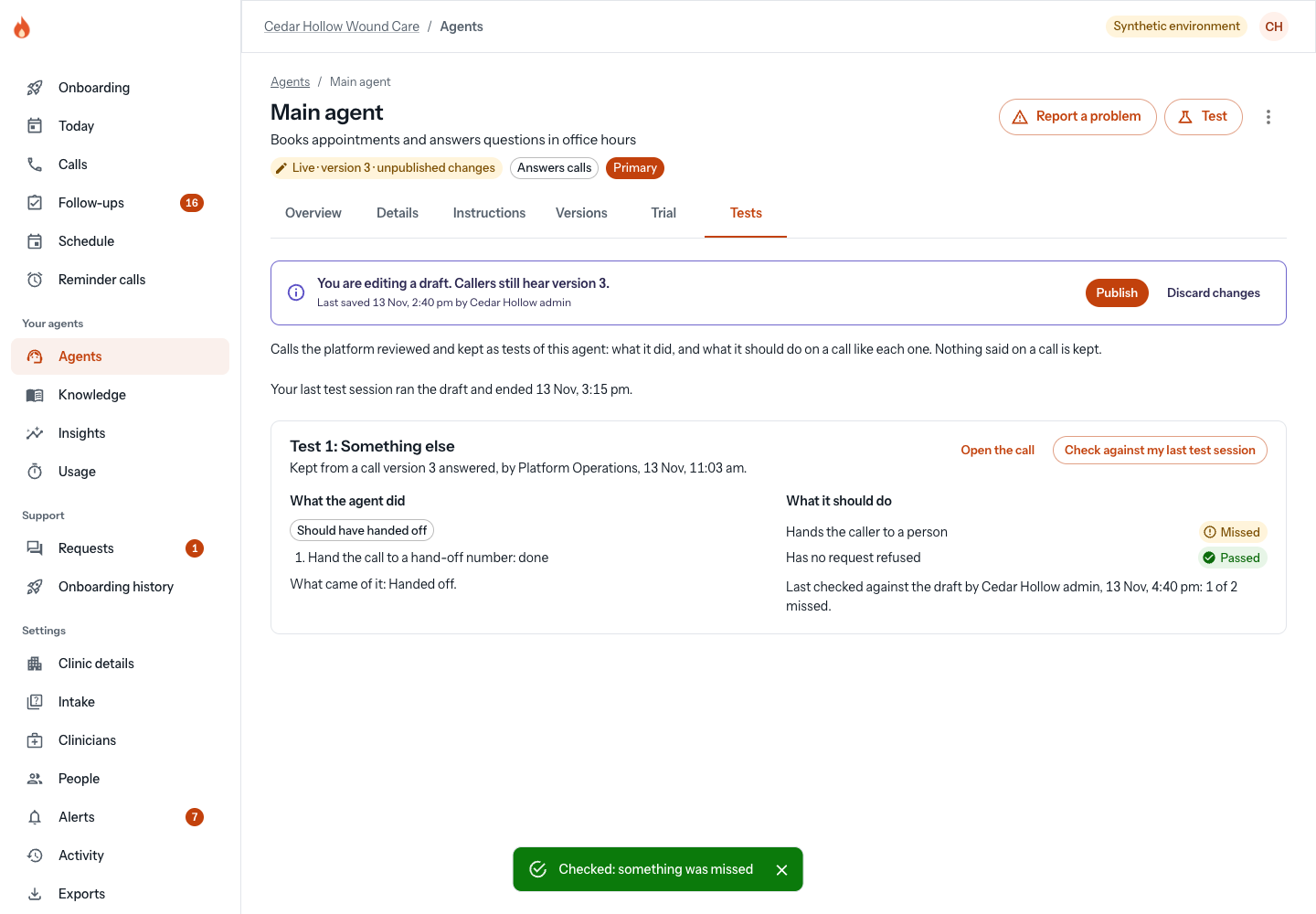
Synthetic dashboardThe Cedar Hollow clinic admin checked a saved case against a previous synthetic browser test of the draft. This check did not place a new call.
Full size Publish, compare or go back to a version
- Clinic admins and agency operators with permission: choose Publish in Agent Studio. Read the changes to greeting, voice, attached knowledge and instructions, which lines are affected, when it takes effect, and whether this exact draft was tested. Choose Test first when you need new evidence; otherwise confirm the reviewed change and provide an optional note.
- In Overview, check the watch figures for the new release and its predecessor. In Versions, compare What changed, Made by, When it was live and Calls. Authorized readers can open filtered calls or What it was told when shown. A draft row is marked not live, and unavailable or low-volume comparisons are not proof of a difference.
- Where permitted choose Go back to version N, review the differences, give a reason and finish fresh sign-in. For clinic admins the prior version must use the current approved instructions; agency operators are also subject to whether the older instructions can still be used. Going back adds a live-history entry for subsequent calls and preserves any draft; it does not delete calls or versions.
Create and test knowledge your agents use
- Open Knowledge and choose a set. Review the agents listed under Used by. Use Search entries and the Other word autocomplete to filter; it matches saved alternate words, not answers generated by the agent.
- Clinic admins and agency operators with edit access can create or rename sets and add, edit, turn on/off, move or delete entries. Save the question or heading, approved answer and any alternate words. Archive only an eligible set that no agent uses; archived sets are read-only and unavailable to agents.
- In Questions → Open, use Add answer to write a new knowledge entry and resolve the unanswered question. If the entry saves but the question is still open, use Mark as covered and select the entry you just created; do not add it again.
- Use Mark as covered when an existing entry already answers the question. Use Dismiss to move the question to Resolved without adding an answer; it can appear again if callers ask it later.
- In Try a question, choose an eligible agent, enter a fictional question and run the try. It shows up to three matching entries from the active sets the agent uses. No call is placed, and a match does not prove what a real caller would hear.
- In Add entry or Edit entry, set an optional Review by date to make the due state visible. The defaults are up to 10 sets per clinic, 50 entries per set, 1,200 characters in an entry and 10 alternate terms; use actual capacity counters for your workspace. The clinic-wide set cannot be archived.
- To attach a set, open the agent’s Details and edit Knowledge sets in the draft. Publishing the draft changes attachments; editing an enabled entry in a set already attached to a live agent can affect the next call without an agent publish.