 Kindling
Clinic workspace
Clinic settings, reporting and support
Set clinic policies, understand your reports and find the right support, billing or audit record.
Who it’s for Clinic administrators, auditors and authorized staff
On this page
Set up the clinic workspace
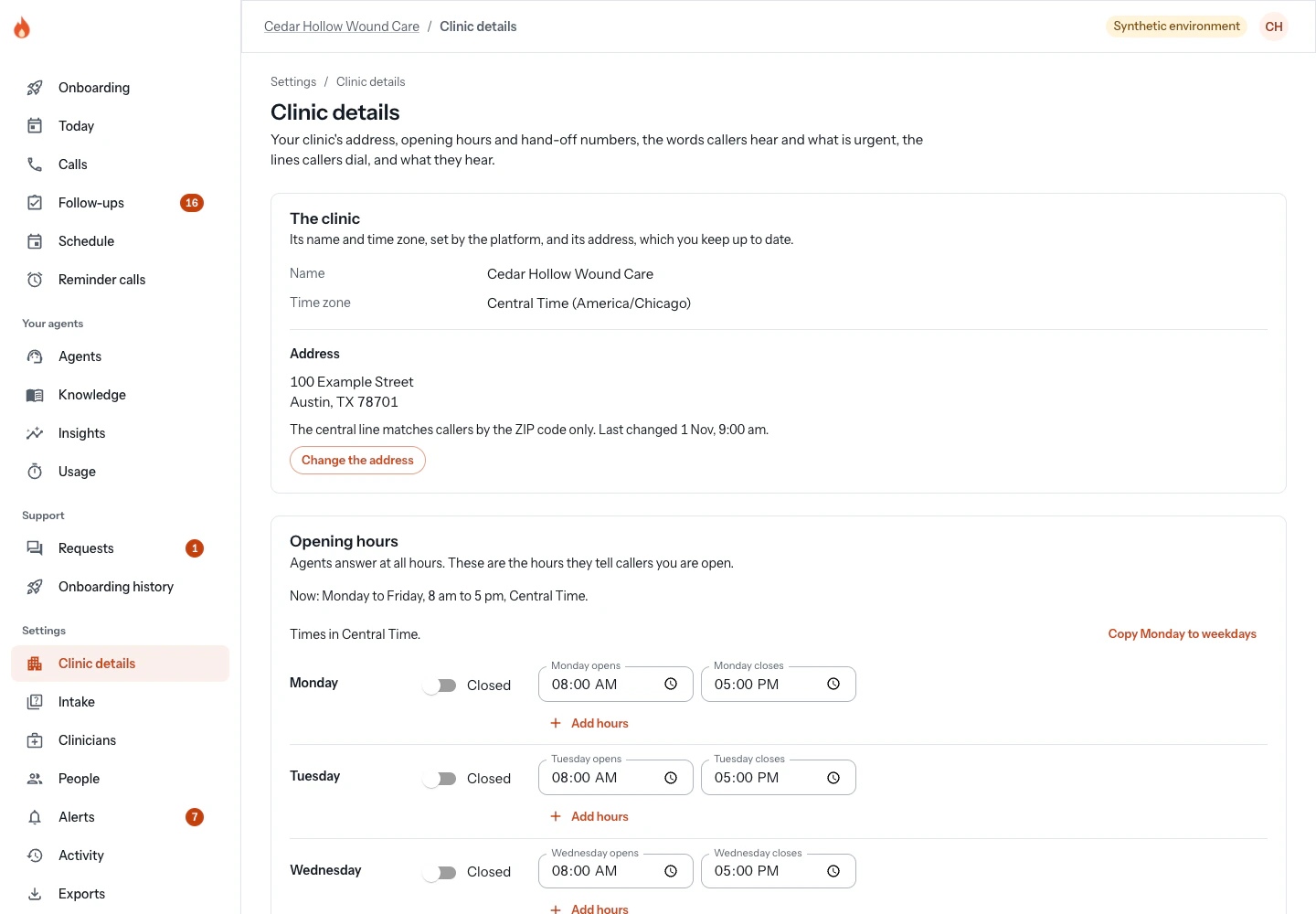
- Clinic details: review the clinic’s name, address, time zone, opening hours, caller-facing wording and urgent phrases. Where allowed, set the clinic logo or accent. Review hand-offs and what callers hear; some controls belong to the agency.
- Intake and Clinicians: set questions using the clinic’s approved fields and configure the clinicians who can take each visit type. Intake can collect configured insurance details, but does not check eligibility.
- People and My sessions: clinic admins can invite staff, admins or auditors and review last-seen status. Use the account menu to end your own sessions. Ask your agency to end another person’s sessions.
- Alerts and notification preferences: review clinic notices, configured delivery channels and each channel’s recent delivery results. Change your own notification preferences where enabled.
- Central line: review whether the clinic participates in its platform’s shared number and where it is listed. The platform controls routing for its shared number.
Read Insights and pilot results
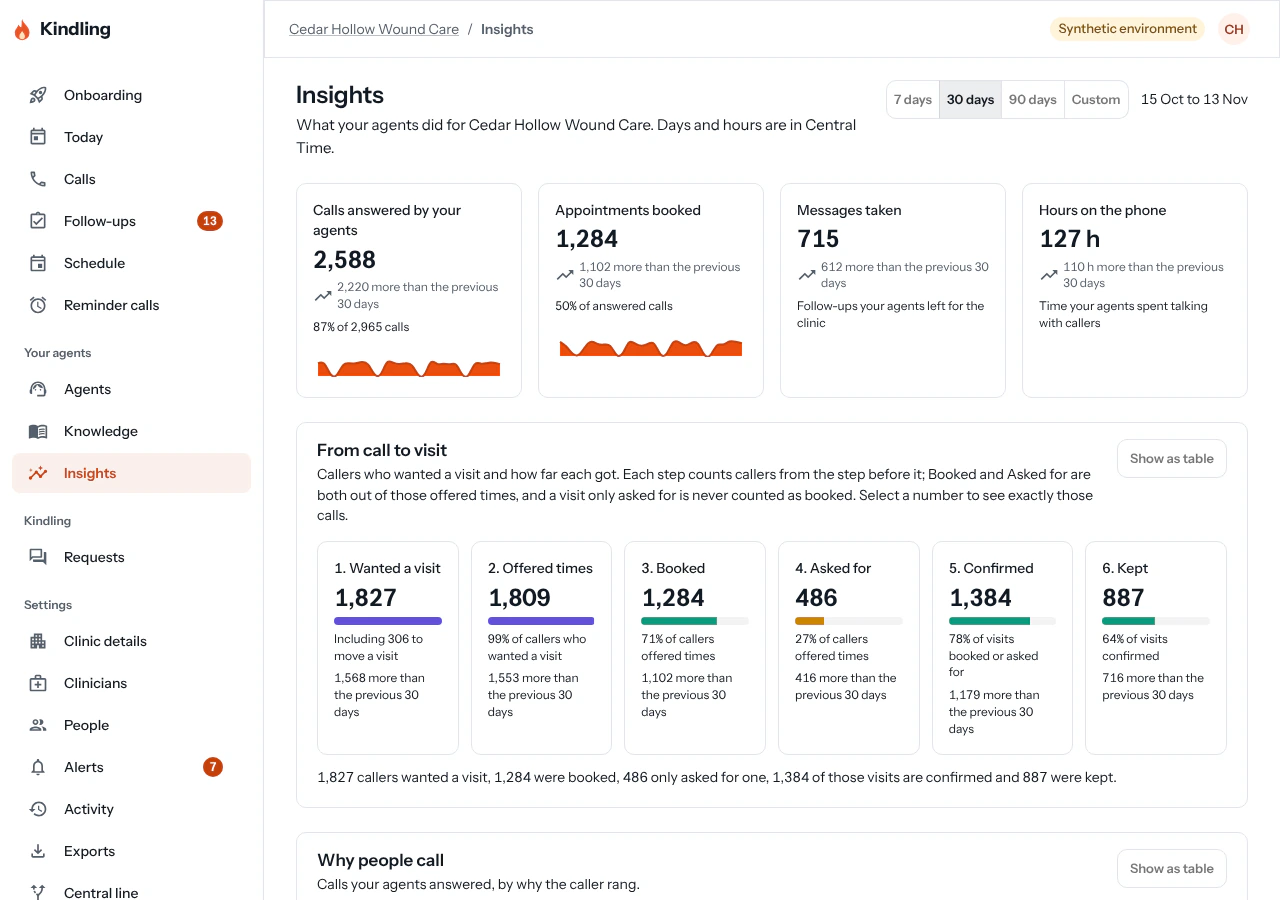
Insights shows why people call and how calls progress toward visits. From call to visit separates visits the agent booked from ones it requested. Counts are calls, not unique visits; booking on one call and moving on another can count the same visit in both. Unknown kept-visit figures mean insufficient attendance data, not zero.
Authorized readers can open the calls behind a chart and see the monthly report. Pilot results follows eligible confirmed bookings, callbacks completed by their deadline and reported staff effort. A clinic’s pre-pilot baseline is labeled as reported, not measured by Kindling.
Review activity, usage and billing
- Activity: switch between agency activity and all activity. Filter by person, dates, subject and outcome. Authorized admins and auditors can download a filtered activity CSV with a reason and a recent sign-in.
- Exports: clinic admins can request permitted records in the available formats. The screen shows completeness and legal-hold status where applicable. The assistant cannot export records or place or release holds.
- Usage: where enabled and permitted, see the selected month’s call time, lines, agents, estimated durations and previous month states. A usage download requires a reason and recent sign-in.
- Billing: where enabled and permitted, see the clinic’s plan and invoice portions. A person listed on a multi-clinic account can see the whole invoice; other authorized readers only see the clinic’s share on the invoice detail. If Pay is available it opens the payment provider. It is not a patient payment flow.
Ask your agency for help
Use Settings → Service status for current answering evidence, line states and the latest applicable notice. Unknown means recent evidence is missing. Use Requests → New request or Report a problem from a call, visit, follow-up, agent or onboarding step to link the affected record without putting patient details in the title.
The request shows who needs to respond next, the agency owner if assigned and any response target. Reply in the same thread. If it worsens, use This is getting worse where available; recent completed requests can be reopened, and older ones can be followed by a new linked request.
Maintain the clinic profile, intake and clinicians
- Clinic admins: in Clinic details review the name and time zone (set by the platform) and save the address and opening hours where editable. The ZIP helps eligible shared-line routing. Use the clinic Accent colour setting where the platform allows it; a locked or empty clinic override uses the platform’s brand.
- Edit Words callers hear and Urgent phrases for your clinic’s specialty. Review configured hand-off destinations with the agency. In Agents → Who handles what check each purpose and fallback; where available, Change in Settings opens the appropriate configuration. Do not paste patient details into wording, phrases or hand-off labels.
- Open Settings → Intake to review the question list and clinic intake policy. Authorized admins or delegated group managers set Email and Insurance to off, optional or required. Add or edit a yes/no or short-list question, choose the visit types it applies to, switch it on or off, or remove an obsolete question. Supply only approved prompts and choices; asking for insurance never verifies coverage.
- Clinic or agency admins: open Settings → Clinicians → Directory and use Add clinician or Edit. Enter a name, an optional title and at least one visit type under Sees. Turn Taking bookings off to remove them from new agent offers without deleting their name from existing directory-linked bookings. Use Edit to restore availability where appropriate; maintain individual hours separately in Schedule settings.
- Open Bookings by clinician and select a date range to compare Booked and Waiting. These are bookings made by agents on calls in that period, attributed to the clinician the scheduler chose. Waiting still needs the office to confirm. Test calls and independently entered appointments are not counted.
- Open Clinic details → Call transcripts to review Keep transcripts of this clinic’s calls and Have the agent write a short summary of each call. On an eligible retention-enabled call, consent is a separate requirement and transcription needs all three switches on: the platform’s, the clinic’s and the provider profile’s. The summary setting also needs a kept transcript.
- Turning off a switch stops new eligible transcripts; it does not delete older transcripts or their linked summaries. They follow their existing retention rules. The ordinary no-key inbound route keeps no audio, transcript or AI summary regardless of these switches. What callers hear and the agency’s Recorded messages can show historical wording that does not play on that ordinary route.
- The agency’s Setup page is separate from Clinic details and Getting started. It records readiness and approved changes; a clinic admin does not gain provisioning controls by opening the clinic workspace.
Manage clinic membership and your own sessions
- Clinic admins: in Settings → People use Invite someone, then choose the least-privileged role (staff, clinic admin or auditor), enter their name and email, and choose Send invitation. Use Manage for permitted role changes or removal; complete fresh sign-in when requested and recheck the member row.
- Use Show to filter signed-in, stale or never-signed-in entries. Signed in now and Last seen describe session evidence; an unused invitation and a long-inactive user are different states. People does not end another person’s sessions. The request link asks the agency to act where appropriate.
- Anyone signed in: open the account menu → My sessions. This device appears first; review the start, last active time and second-factor indicator. Sign out ends one session; Sign out everywhere else ends the other sessions. Signing out of This device asks first and returns you to sign-in. You cannot end another person’s sessions from here.
Review alerts, delivery results and personal notifications
- Clinic staff and admins: open Settings → Alerts for the dashboard inbox. Open an alert’s linked record to investigate, or mark an alert or the inbox read. Marking read does not resolve a service incident.
- Clinic admins: under Channels and emails, use Add an alert channel to choose an approved email, Slack or HTTPS webhook destination and the alert types it should receive. Check the On switch, then Send test to the authorized destination if appropriate. Disable or remove a channel when no longer needed; secret webhook addresses are not shown again.
- Open a channel’s Deliveries to see the last 30 days, newest first. Read Delivered or Failed and the explained error. A test result is evidence about that destination, not call routing. Use Summary emails to select weekly summary or monthly report settings where allowed; summary emails contain counts without caller details.
- Where onboarding projects make Notifications available, open the notifications list and Preferences to choose your own email delivery. Mark shared notices read in your own view; this does not affect another person’s preferences.
Filter or download the access log
- Clinic admins and auditors: open Settings → Activity and choose agency activity or all activity. Filter by date range, person, type of record, action or kind, and outcome where applicable. Open a record link only if you are allowed to see the record.
- Use Download to create a CSV of the filtered activity. Give a reason, complete fresh sign-in and use the expiring link. The log contains audit facts and references, not call dialogue. Narrow an oversized date range before requesting it again.
Export an eligible record or review a legal hold
- Clinic admins: in Settings → Exports choose the applicable item, select its offered format, enter a reason and complete recent sign-in. Use the expiring download only for the approved purpose. A transcript export depends on a retained eligible transcript and may show partial completeness.
- For Intake and bookings, select an eligible completed call. A no-key call can qualify without a transcript if its intake and booking records can be matched to one clinic-local person. Ambiguous matches are refused. For an older eligible call, use its More → Export intake and bookings shortcut. This export includes intake and bookings only.
- Where authorized, open the legal-hold section or use the call’s Place a legal hold shortcut. Select the call, enter the reason and confirm after a recent sign-in. Use an existing hold’s Release action only with approval; release changes retention and does not create or recover media. The assistant cannot create exports or place or release holds.
Read figures, drill into calls and open a monthly report
- Open Insights and pick a date range. Read From call to visit: wanted a visit, offered times, booked, asked for, confirmed and kept. Booked and asked for are separate branches, and confirmed can include visits staff settled later. These are counts of calls, not distinct visits. Unknown attendance is not zero.
- Choose a figure in From call to visit or Why people call. For roles that can open Calls, the matching calls open with the corresponding filter chip. Test calls are excluded from the figures; low counts or rates can be withheld. Version comparisons where available compare the displayed releases and periods, not patients.
- Clinic admins, auditors and authorized agency readers can open Insights → Monthly reports and choose a month. The first report appears on the first day after a full month with agents. Use Print, or Download PDF if your role has export permission, and give a reason and complete fresh sign-in if prompted. Access to a list or group summary does not grant access to the individual report.
Read and interpret a clinic pilot
- Clinic admins: open Insights → Pilot results. The agency can also open it from the clinic’s menu in its console. The clinic does not set the pilot’s dates or edit its baseline. The days and opening hours use the clinic’s time zone.
- For Confirmed bookings per eligible call, the denominator is non-test inbound phone calls within the selected hours that the agent answered and whose reason was booking a visit. A call counts as confirmed when its visit was confirmed or kept within the configured window, normally three opening days. Still waiting, confirmed later, cancelled and no visit are shown separately. The answered-call total is context, not this denominator.
- For Call backs done by the deadline, use the follow-ups raised by calls in the pilot’s dates and hours. A follow-up counts as done on time if staff reached the caller or booked through the follow-up by its deadline. An unsuccessful attempt does not qualify. Stopped follow-ups and the median time from creation to first attempt are shown separately.
- For Staff minutes per resolved follow-up, the page reports resolved follow-ups with an effort answer and averages only those answers. In Follow-ups → Log a call, when a follow-up is resolved while the pilot runs, choose Under 2 min, 2 to 5 min, 5 to 10 min, Over 10 min or Skip. The choices contribute 1, 3.5, 7.5 or 12 minutes respectively. Skip does not count as zero.
- Check the total and weekly figures. With the default reporting thresholds, a rate needs at least 10 eligible calls or follow-ups, the effort average needs at least 10 answers, and the first-attempt median needs at least 20 first attempts. A figure withheld for a small sample or marked Not known is not zero.
- Agency operators: choose Start a pilot, select First day and Last day, and set Which calls count to Calls outside the clinic’s opening hours or Calls at every hour. Start today or later; the last day must follow the first, and the dates can be no more than 366 days apart. Only one pilot can be planned or running at once. Once running, Change the pilot can change hours and the last day, not the first day, and cannot move the end into the past.
- Use Add a week before finalization to enter a Monday-start baseline week ending before the pilot starts. Enter the clinic’s reported Calls, Call backs made, Visits booked and Staff minutes on calls; leave unknown values blank. The normal limit is two weeks. Existing weeks can be edited until final. These are clinic-reported figures, not platform measurements.
- A future pilot is planned; it runs through its last day and then ends. No later calls or staff-effort answers are added to that pilot. Final on can be later: it waits for the booking-confirmation window after the last day and all applicable callback deadlines. When settled the report is fixed. The agency can Start a new pilot once the previous one has ended.
- If Download PDF is available to you, enter a reason, complete fresh sign-in if prompted, then choose Create PDF and use its expiring download link. The PDF contains weekly figures and reported baselines, not caller names. Use only fictional records in the demo.
Read usage, invoices and payment permissions
- Clinic admins and auditors where enabled: open Usage and select a month. Compare Talk time, calls answered by an agent, Call time and Included minutes. Read the per-day, line and agent totals. Test calls, previews and the workspace assistant do not count toward these totals.
- In Every call, choose Only estimated lengths to review estimates, and open a linked call only if your role allows. Earlier months shows whether a month is Open, Closing or Closed. Use Download for the displayed month’s CSV with a reason and fresh sign-in.
- In Settings → Billing, when enabled, read Your plan, This month so far and its projection, Invoices and Billing contacts. Open an invoice to see your permitted line items and totals; only a listed account reader can see all clinics on a shared account. Authorized account contacts or the admin of an eligible single-clinic account can edit billing contacts.
- Choose Download when permitted. If Pay is available to you, check the invoice and payer before following the link to the payment provider in a new tab. Viewing an invoice is not payment permission. This is the clinic’s service bill, not a patient bill. Payment provider availability and live money movement are separate deployment choices.
Set who can take a hand-off and in what order
- Clinic admins or agency admins: open Settings → Clinic details → Hand-off numbers and choose Add number. Enter a Name of up to 80 characters and the approved full Number with its country code. Do not add the same destination twice or use one of the clinic’s own incoming lines, which would loop back.
- Under What it is for, select the reasons this number handles, or leave it empty to serve any hand-off reason. Turn on In use to make it eligible. Move a row up or down to set its order among eligible candidates; for urgent calls and calls from a clinician or facility, numbers explicitly marked for that reason are tried before eligible general numbers.
- Use Remove to delete a row, or turn off In use to keep it for later without trying it. You can save up to 20 rows, and an empty directory is valid. Choose Save hand-off numbers and complete fresh sign-in. If the editor flags a duplicate or an incoming clinic line, correct that row before saving; use Cancel to discard unsaved edits.
- Check the approved destination and reason again after saving. If clinic opening hours are configured, hand-off destinations only ring during those hours. A listed number does not prove staff can be reached. If no eligible destination can be tried or none answers, the call follows its applicable fallback; do not count that as a staff hand-off.
Read status, prove a line or send it to staff
- In Settings → Service status, read the latest notice, answering status and each line’s label, last four digits, fallback and evidence. Unknown means there is no recent proof. Configured, not yet proven and On staff are different from disabled or failing.
- Clinic admins or agency operators: choose Test this line in the authorized synthetic environment. Select an approved fictional test phone if asked and choose Start the test. Call from the displayed phone before the deadline; the system does not call for you. If a test is already waiting, the page can reopen it. Use Cancel the test to stop a waiting test.
- Read the stages: reached the platform, matched the line, admitted, agent picked up and agent spoke. If it expires before receiving a call, confirm the source phone and the dialed line; carrier delivery may be missing. If it fails after reaching the platform, read What usually causes this. A closed line, refused admission, a different agent, no pickup, silence and an early disconnect are different failures. A cancellation is not proof.
- After a pass, use I heard the agent only if you heard it. The page records the attestation separately. A browser voice test, another line’s test or the shared central number cannot establish this line’s proof.
- Use Send this line’s calls to staff only when authorized. Read exactly what callers will get, provide a reason and complete fresh sign-in. The next call bypasses the agent and the line shows On staff. Only the agency gives the line back to the agent; it clears proof and needs a new test. Managed Telnyx lines have their own pause and rollback controls; the ordinary Send to staff and Give back options do not apply.
- Use Send the platform a request if status is unclear. The shared Central line is separate: clinic admins can review listing and participation under Settings → Central line; the platform sets its routing rules. Proof that one central call reached an agent does not prove the clinic’s direct line.
Send a request, follow the thread or recover from an error
- Clinic staff or admins: open Requests → New request, or Report a problem on the affected call, visit, follow-up, agent or onboarding step. Pick the category and severity offered, describe what went wrong and check the linked record. Avoid patient details in the title.
- Read who is waiting on whom, the owner if assigned, and any response or next-update deadline. Reply in the same thread. Use This is getting worse once if available; it increases severity, not ownership.
- If a completed request needs work again, use Reopen while available. Beyond that window, start the linked follow-on request. Notices posted to a linked incident can appear in the thread; they are not proof that all work you requested has been completed.
- If a page shows This page didn’t load, choose Reload. A failure report contains a route pattern, failure category and build, not the page address or a stack trace. An access refusal is not fixed by repeated reloads: confirm your role and the selected clinic.