 Kindling
Clinic workspace
Reminders and referrals
Interpret reminder outcomes correctly and move a referral from missing information to a confirmed visit.
Who it’s for Clinic front desk and administrators
On this page
Read reminder outcomes
Open Reminder calls to review planned reminders and the result of each try. A person answering counts as reached. A mailbox is separate: the dashboard distinguishes Message left (played in full), Mailbox, no message left and Uncertain: message may not have played in full. Full playback does not verify that the carrier saved the message or the patient heard it.
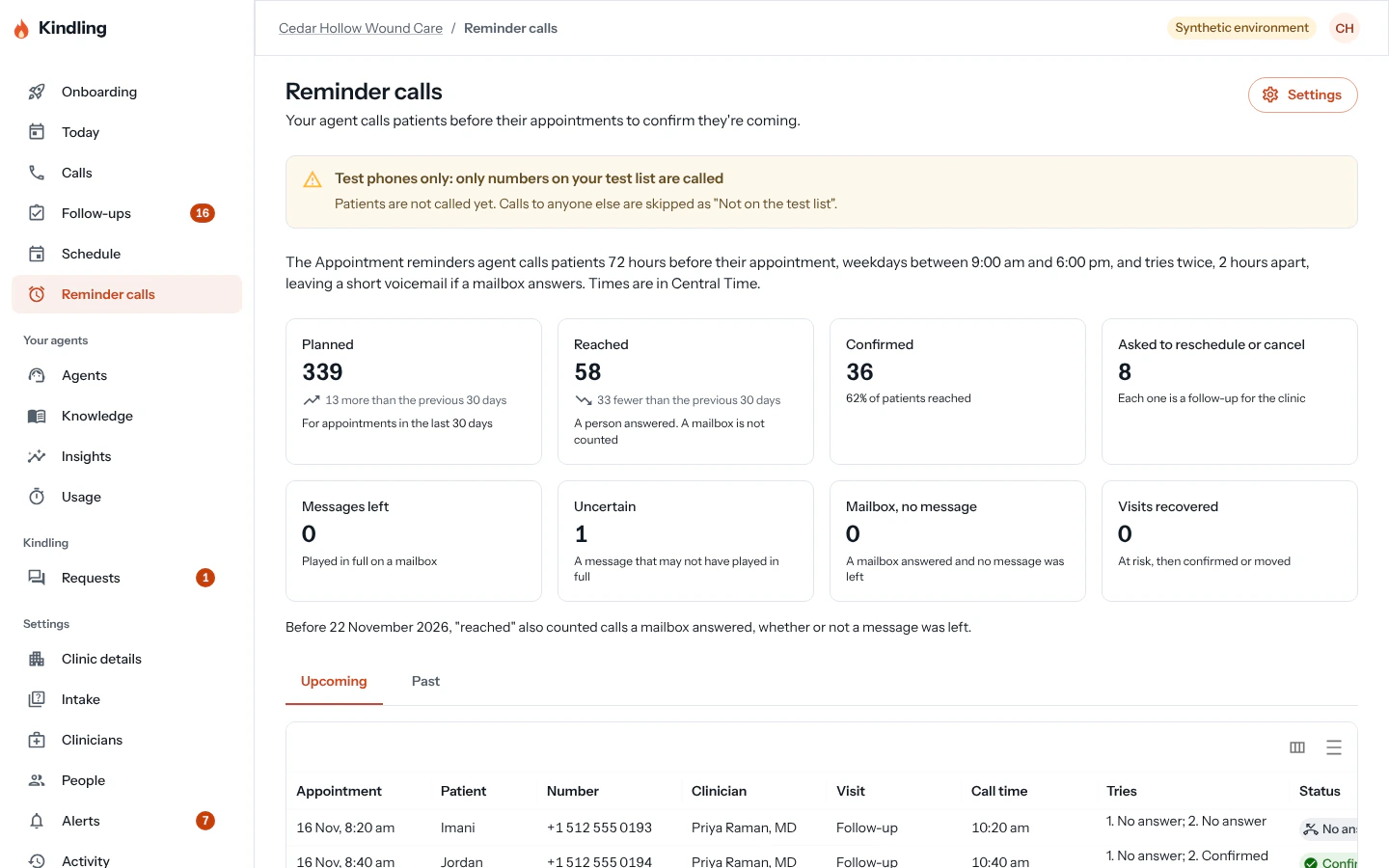
In reminder settings, check calling hours, opt-outs, Who to call back and the approved Voicemail message. A clinic can prepare a draft; the agency approves or returns it. Play previews the message without dialing anyone. A permitted follow-up can be created for an unresolved no-contact, move or cancel request; a current visit outcome or the visit’s elapsed time can close that work.
Move a referral toward booking
Referrals appears when the clinic has enabled it. Clinic staff and admins can work the records. Clinic admins maintain the checklist in Settings → Referrals; the agency publishes any new status-update wording. A referral has one follow-up for outreach, even if it began as a different call follow-up.
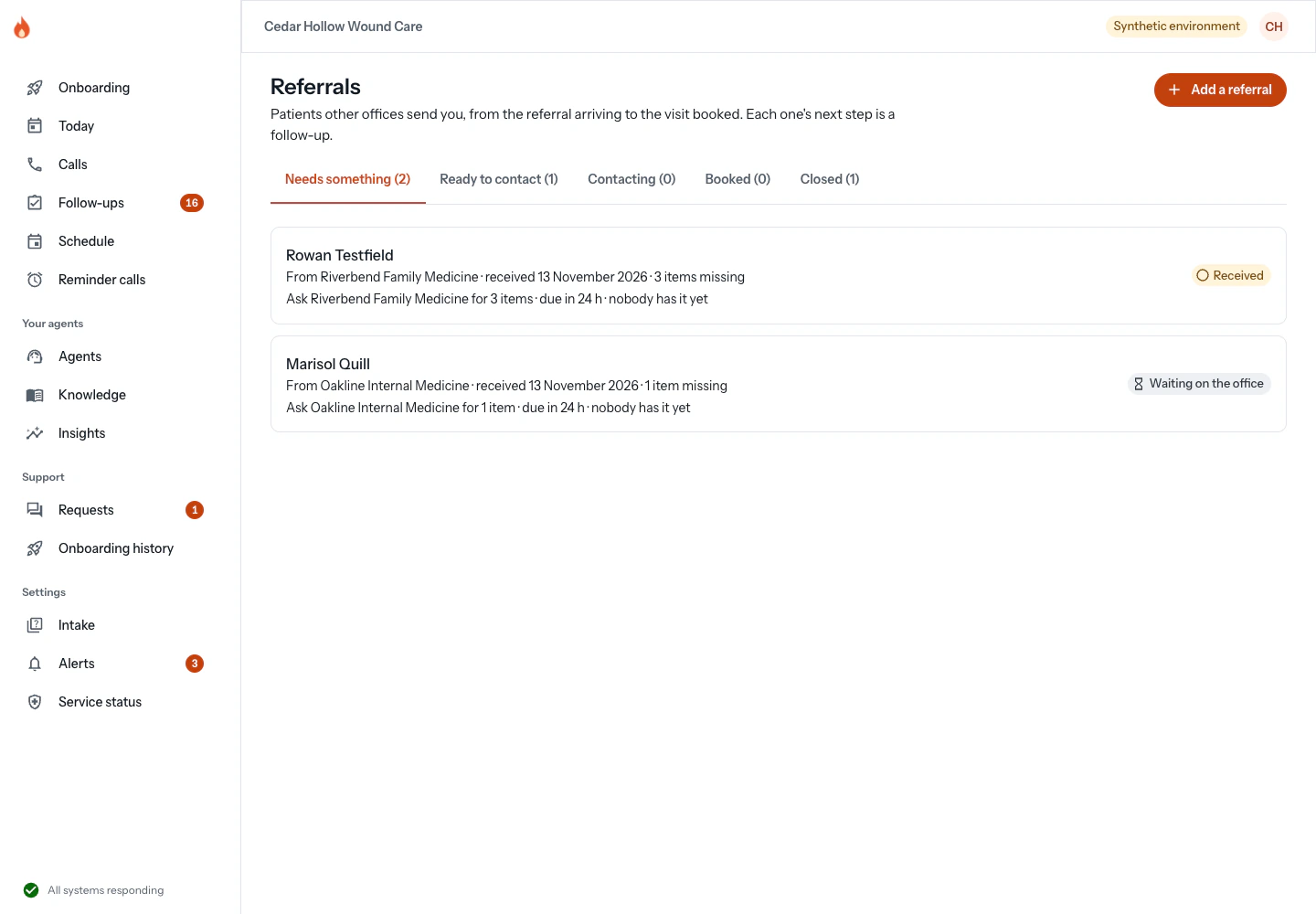
- Use Add a referral or Start a referral from this on an eligible follow-up. Record the referring office, how it arrived, the requested visit and the details your authorized workflow requires.
- Use Needs something until each checklist item is received or marked not needed. Then work Ready to contact or Contacting and log attempts from the linked follow-up.
- To reach Booked, book through the book of record or record the already confirmed outside visit. An unanswered request to a connected system is not yet booked.
- For a status update, copy the approved wording, send it through your own approved channel and record how it was sent. Kindling does not send it to the referring office. If there is no booking, use the referral’s end action and select the actual outcome.
Stop, retry or review a reminder
- Use Reminder calls to find the planned attempt or the original result and open its tries. Check Reached separately from message or mailbox results. If the patient is not reached, review any linked follow-up instead of assuming a voicemail was saved or heard.
- Use Don’t call to stop a planned reminder or, for an eligible finished attempt, Try again where offered. Open call and Open follow-up link to those records. A retry requires an eligible visit and number and is subject to today’s consent, opt-outs, hours and dialing settings; it is not a dial-now button. A corrected number can replan an untried reminder, but does not rewrite previous attempts.
- If a managed Telnyx source becomes unavailable before dialing, the reminder can remain queued while it is still eligible; no call was placed or attempt spent and no unanswered result or new unreached follow-up should be inferred. An actual submitted carrier failure follows the normal outcome rules. Ask the operator to verify the same route rather than switching carriers or repeatedly retrying.
- In Reminder settings, clinic admins can manage the calling policy and use Stop reminder calls to a number where enabled; staff can review these settings. Use the opt-out entry to prevent future eligible reminder attempts for the number, not to delete previous calls. Agency operators control dry run; voice, carrier and live outbound authorization are separate.
- If Make a follow-up when nobody is reached is enabled, the final failed attempt can leave staff a single follow-up for the visit. Move or cancel requests can also leave work when not settled by the call. A confirmed, moved, cancelled or elapsed visit can close recovery work; check the visit state.
Set which reminder agent calls, when and how often
- Clinic admins: in Reminder calls → Reminder settings, choose a published Reminder agent and an active line under Number patients see. Call patients before their appointments does not override reminder consent, opt-out, dry run or platform authorization.
- Under When calls go out, choose 24, 48 or 72 hours before the appointment, or Another time from 2 to 168 whole hours before. Choose at least one day of the week. Set Calls start at and Calls stop at within 8:00 am to 9:00 pm in the clinic’s time zone; the allowed window cannot be widened.
- Under If nobody answers, set Tries to Once, Up to twice or Up to three times. Wait between tries is editable only with multiple tries; an attempted retry still has to fit within the calling hours and qualify at the time.
- Choose Leave a voicemail only for the approved message shown below the setting. Check Who to call back: the number said in the message can be an eligible active line, or it uses Number patients see if no separate line is selected. A mailbox attempt counts as Message left only when the whole approved message played; do not treat that as delivery evidence.
Prepare and preview a reminder voicemail
- Open Reminder calls → Reminder settings → Who to call back and set the approved contact name and line. Under Voicemail message, check Live now, the version, who approved it and when.
- Clinic admins can prepare a draft and review any wording problems. The agency can use Approve or Return with a note after a recent sign-in; a draft does not replace the live message by itself.
- Use Play to hear the rendered approved message and Stop to end the preview. Nothing dials. For a call, Message left (played in full) only means the fixed message finished playing; an interrupted or unverified playback is shown separately.
Configure referral requirements and close a referral
- Clinic admins: open Settings → Referrals to edit the checklist for new referrals and see the published status wording. Agency approval controls published wording. Staff can read the rules if Referrals is on.
- In a referral, record whether a required item is received or not needed; the checklist determines when it can move to Ready to contact. Open the linked follow-up to log outreach. If the office needs an update, copy the approved text, send it through your authorized channel and record the channel/date from the referral. The product does not send that update.
- When a visit is confirmed, use the linked schedule entry as the source of truth. Booked gets its own tab and is reached only by booking a visit. If the referral will not continue, open End the referral and choose the actual outcome below.
- Choose The patient declined when the patient does not want a visit. Choose Return to the referring office when the patient could not be reached, the service is not offered or the patient chose another provider. This records the outcome; it does not contact the referring office.
- Choose Close it for a duplicate or a referral entered by mistake. End it closes the linked outreach follow-up and records the outcome and reason; the Closed tab includes declined, returned and closed referrals. It does not create an appointment.