 Kindling
Agency console
Operate the shared central line
Manage which clinics can take a routed call, test coverage without dialing and explain what happened from the decision log.
Who it’s for Platform owners and admins; clinic admins can read their own participation
On this page
Read Today before changing the line
- Open Platform → Central line → Today. Confirm the shared number and its On or Off badge. See how many switched-on clinics can be offered now, then check Today’s calls and What callers asked for today before opening the longer Decisions history.
- In Today’s calls, compare routed, no clinic in range, hung up and never reached the receptionist. Use the table for start time, duration and outcome. An in-progress call has no final outcome; a truncated day is a lower bound, not a complete count.
- Treat a successful route to a clinic as a handoff, not proof of a booking or a test of the clinic’s directly dialed number. A call that did not reach the receptionist is different from a successful search that found nobody.
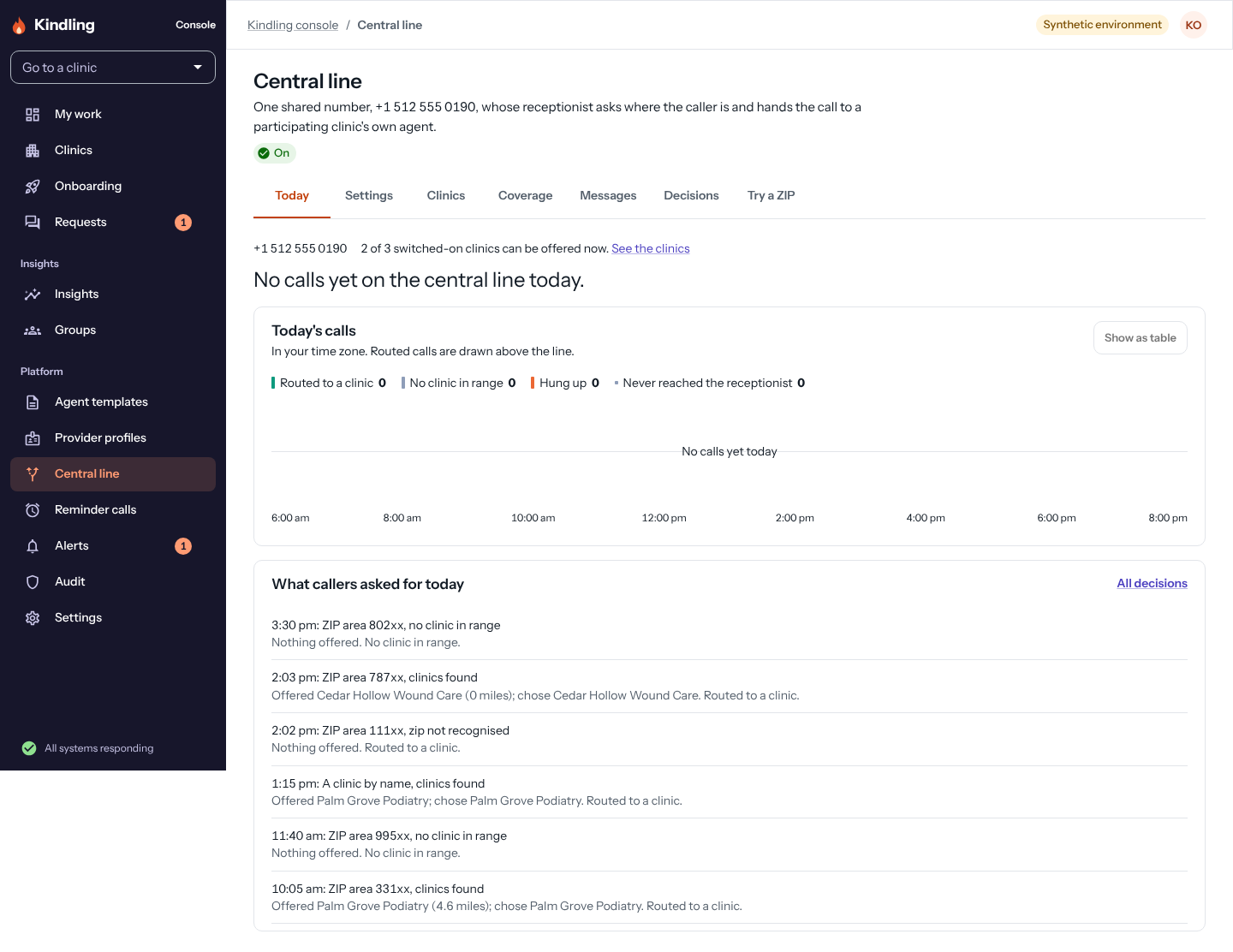
Synthetic dashboardCentral line Today shows the shared line’s status, call outcomes and routing decisions. The displayed number and activity are fixture data.
Full size Check the switch and know what callers hear
- Open Settings and read Answer the central number. If authorized to change it, read the confirmation, supply a reason and complete the recent sign-in. The change applies from the next call; it does not change directly dialed clinic lines.
- When the central line is off or the receptionist cannot answer, the central line’s Closed message is the fallback, not a staff transfer. With the line on, callers can speak without pressing a key. If no clinic is offered, the receptionist can explain there is no match; a nearby clinic mentioned for information is not a choice.
- If the caller chooses an offered clinic, its eligibility is checked again. If it is no longer eligible, the receptionist remains and can explain the refusal. Once the clinic call starts, the clinic’s own fallback can apply, including On staff. If the receptionist cannot be removed during the handoff, the central closed fallback can end the call. Check service evidence before assuming an agent actually spoke.
Add, pause or troubleshoot a participating clinic
- On Clinics, read Taking part, Service area, Address, Can be offered now and Last routed call. A clinic generally needs to be live, switched on, have a known location and have an active number. A past route does not prove current eligibility.
- Use Change on the clinic’s row. Switched on lets the clinic be considered. Paused preserves its settings while taking it out of the match. Switched off excludes it. Enter Service area, in miles, between 0.1 and 250 or leave it blank to inherit the current default. The optional note is visible to the clinic; leave out any caller details.
- Save, then reread Can be offered now. Resolve a not-live state through readiness, a missing address through Clinic details or a missing active number through the agency number and line workflow. Clinic admins can read their clinic’s Central line settings but cannot change participation.
- A managed Telnyx number needs its separate public-call approval. That does not enroll the clinic. The receptionist prefers an eligible legacy line; an existing attempt does not change numbers if its approved route becomes ineligible.
Change a rule without mistaking it for a phone change
- In Settings → Rules, select Change the rules. Read the current version and the proposed Changes summary before entering a reason. Save as version N; the new rules apply from the next search.
- Set the default service area for clinics that do not override it. The Clearly nearest margin can make the closest offerable clinic the only choice. Most clinics offered is a whole number from 1 to 3. How far to look when nobody is in range controls a possible informational suggestion, not the service area.
- Leave out a clinic at its limit of calls at once removes a clinic from the offered list when it is at capacity. Changing that matching rule does not guarantee an available handoff. Use History to compare values and reasons; if you need an earlier policy again, enter those values as another version.
Read coverage and distinguish gaps from missing data
- Open Coverage and select the 7-, 30- or 90-day period. Compare the circles for clinics offered now with dashed circles for participating clinics not offered now. Squares count calls with no clinic in range by three-digit ZIP area, not by individual ZIP or caller.
- Use Centre on to focus on one clinic, or switch the chart to its tables to see service areas and gap counts. Areas without a known point appear in the table only. Straight-line distances between ZIP points are not drive times or service guarantees.
- For a meaningful gap, check Clinics for eligibility reasons, then try a representative fictional ZIP in Try a ZIP before making any authorized change. Compare historical outcomes in Decisions rather than assuming today’s rules explain an older gap.
Run a read-only match by ZIP or name
- Open Try a ZIP. Select A ZIP code and enter five digits, or select A clinic by name and enter up to 80 characters of its name. Submit. This runs the matching rules without dialing, recording a decision or putting the ZIP in the address.
- Read What the caller would be offered and Every clinic the match looked at, and why. A ZIP search orders offers by distance; a name search matches by name without a ZIP distance or clearly-nearest calculation. Outside its service area, At its limit of calls at once, Another clinic is clearly nearer and More clinics than the rules offer explain different exclusions.
- If a clinic is missing altogether, check its live state, participation, location and number on Clinics. ZIP not recognised would prompt the caller once for another ZIP. No clinic means nothing can be offered; any nearest result is informational only.
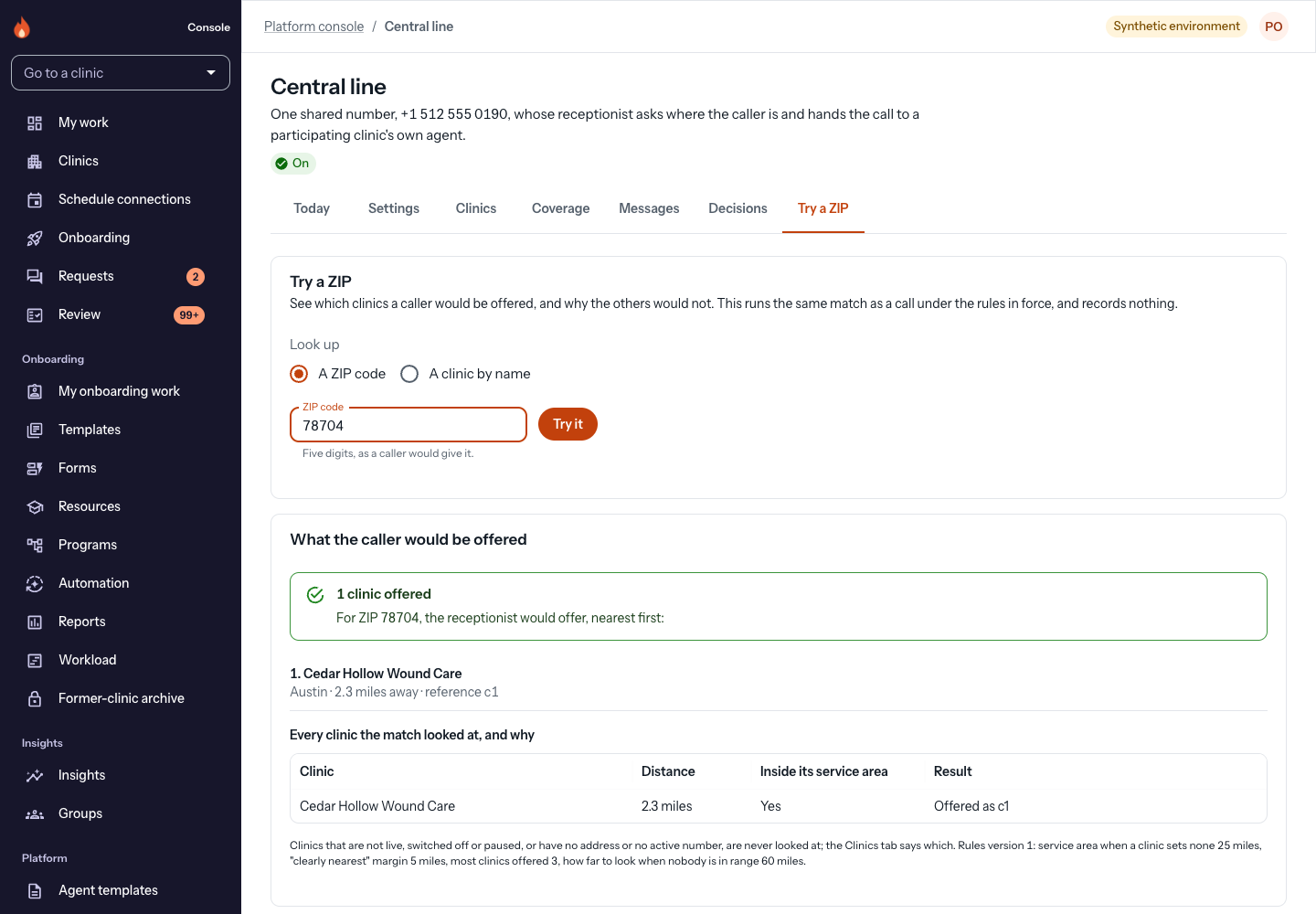
Synthetic dashboardThe ZIP preview shows which clinic would be offered under the current synthetic rules. It does not place a call or add a routing decision.
Full size Explain a route from its recorded decision
- Open Decisions and choose 7, 30 or 90 days. Newest searches are first; use Show more for older rows. There is one row per search, so one call can contribute more than one row.
- Read Asked for, Result, Clinics offered, Chosen, How the call ended and Rules together. A ZIP search displays only its three-digit area. A clinic by name does not reveal the exact words entered. A search can find clinics without any being chosen; a choice is not a successful booking.
- For a surprising result, compare its rule version with Settings → History and the current clinic’s participation with Clinics. A fresh Try a ZIP run uses today’s settings and capacity, so it is not a replay of the earlier call.
Review the words and upgrade the receptionist deliberately
- Open Messages. Read What callers hear for the configured texts and The receptionist for its active template, tools and composed instructions. Connecting uses the chosen clinic’s name; Closed is different from a search with no clinic in range. The receptionist can explain a no-match result. The listed No clinic in range wording is not evidence the exact text plays on that path. Earlier keypad notice and decline are historical only.
- Use Edit the receptionist’s template to prepare a revision. After it is approved, return here and use Use version N if offered. Complete recent sign-in when prompted. An approval on the template alone does not change what callers hear.
- If the receptionist has unpublished changes, review them on its agent page. Publish or discard that draft separately before using Use version N again. This control will not silently publish unrelated edits. Check the active version after the update; the next call uses it.