 Kindling
Host administration
Version platform plans and correct wholesale invoices
Preview rates, date a plan change, reconcile a month and record a payment or credit without changing an issued invoice.
Who it’s for Host administrators; host support for permitted reads
On this page
Draft, preview, publish or archive a plan
- As host admin, open Host → Plans and limits → New plan. Enter a name, select Add plan and open New version or Edit draft. Enter per-clinic and platform monthly fees, included minutes and numbers, overage, additional number fees and minimums. Set limits and feature switches separately; leave a limit blank for none, not zero. Save draft after correcting invalid figures.
- On the draft, choose a platform in Preview for and select Preview last month. Review month, clinic, minute and number quantities, rated lines and total. A preview shows how this draft would rate that platform’s available month; it is neither an invoice nor a subscription change.
- Publish version locks prices, limits and features on that version. Complete fresh sign-in if requested. Platforms do not switch automatically. Open the platform’s Plan to assign a published version. Archive removes a plan from new assignments without moving existing subscribers off it.
Set a version, start date, free period and overrides
Open Platforms → platform → Plan → Change plan. Pick an offered published version, set Starts on, optional Free until and any authorized per-clinic fee or limit override, then include a reason. Blank limit overrides keep the plan’s value. Sign in again when asked and verify the saved plan, start, free period and exceptions.
For the current plan, limit changes can take effect today; changes to fees or free days start next month. A different plan starts on a future date. If selecting a different version, confirm the new start date before saving. Review capacity limits, warnings for monthly minutes and entitlement switches separately: hitting a monthly minutes warning does not by itself stop calls. Plan permissions do not substitute for live backend grants.
The platform can read the applied limits in Billing → Plan and limits. Agency admins use Billing → Statement to compare host charges with what the agency billed its clinics. This month so far is an estimate; in Months, open a numbered invoice’s PDF. The statement does not show host costs, carrier records or other platforms. Agency Accounts, Invoices and Plans cover only its own clinic ledger.
Read a month’s totals, reconciliation and rates
- In Admin console → Billing, choose a month. Review Invoiced, Paid and Past due, then the platform breakdown for billed amounts and variable estimated cost. The estimate covers carrier minutes and model tokens on original service dates, not recurring number charges or profit margin.
- Check Reconciliation for per-clinic and carrier comparisons of meter seconds and imported carrier seconds. Look for calls outside tolerance, records unmatched on either side and the calculation time. No carrier records imported does not mean no calls. The current import path is synthetic; the table is not proof of independent records from a real carrier.
- A host admin uses Cost rates → Add a rate to record the cost type, carrier or model, rate, effective date and optional source note. Complete fresh sign-in if asked. The new dated rate supersedes the earlier rate from its start date; existing entries are not edited or deleted.
The month selector controls the summary and reconciliation. Invoices to platforms is a separate list; always check the invoice’s platform and month on its own row.
Review, issue, void or record an external payment
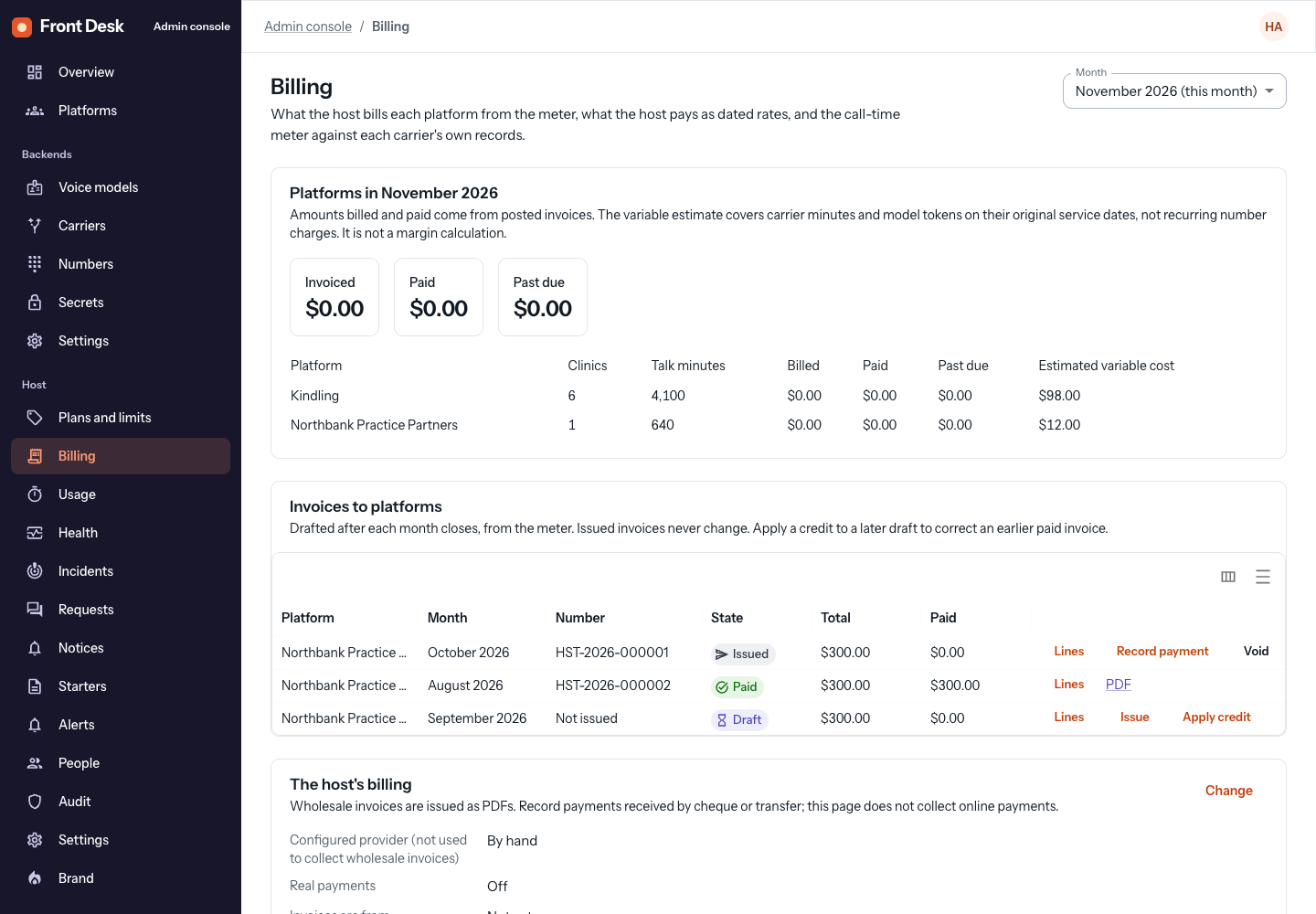
- Host Billing → Invoices to platforms → Lines shows the charge breakdown and rule for a selected invoice. Drafts are generated after the month closes. In The host’s billing → Change, check the issuer name, address, remittance text and invoice prefix before issuing. The provider and Real payments indicators there are configuration, not an online wholesale collection control.
- Use Issue on a draft. Confirm the platform and month, and sign in again if asked. It takes the next host invoice number and its figures are fixed. PDF is available on numbered invoices; issuance does not collect payment or present an online checkout.
- Use Record payment for an amount received outside Kindling on an issued invoice with money still owed. Enter the amount and an optional external payment reference; verify Paid and the remaining amount. Recording this payment is not processing a charge.
- Use Void with a reason on a draft or unpaid issued invoice. The number is not reused and the month can be drafted again. The old issued PDF is not edited. An issued invoice with recorded payment is not a candidate for this void workflow.
Apply a credit to a later positive draft
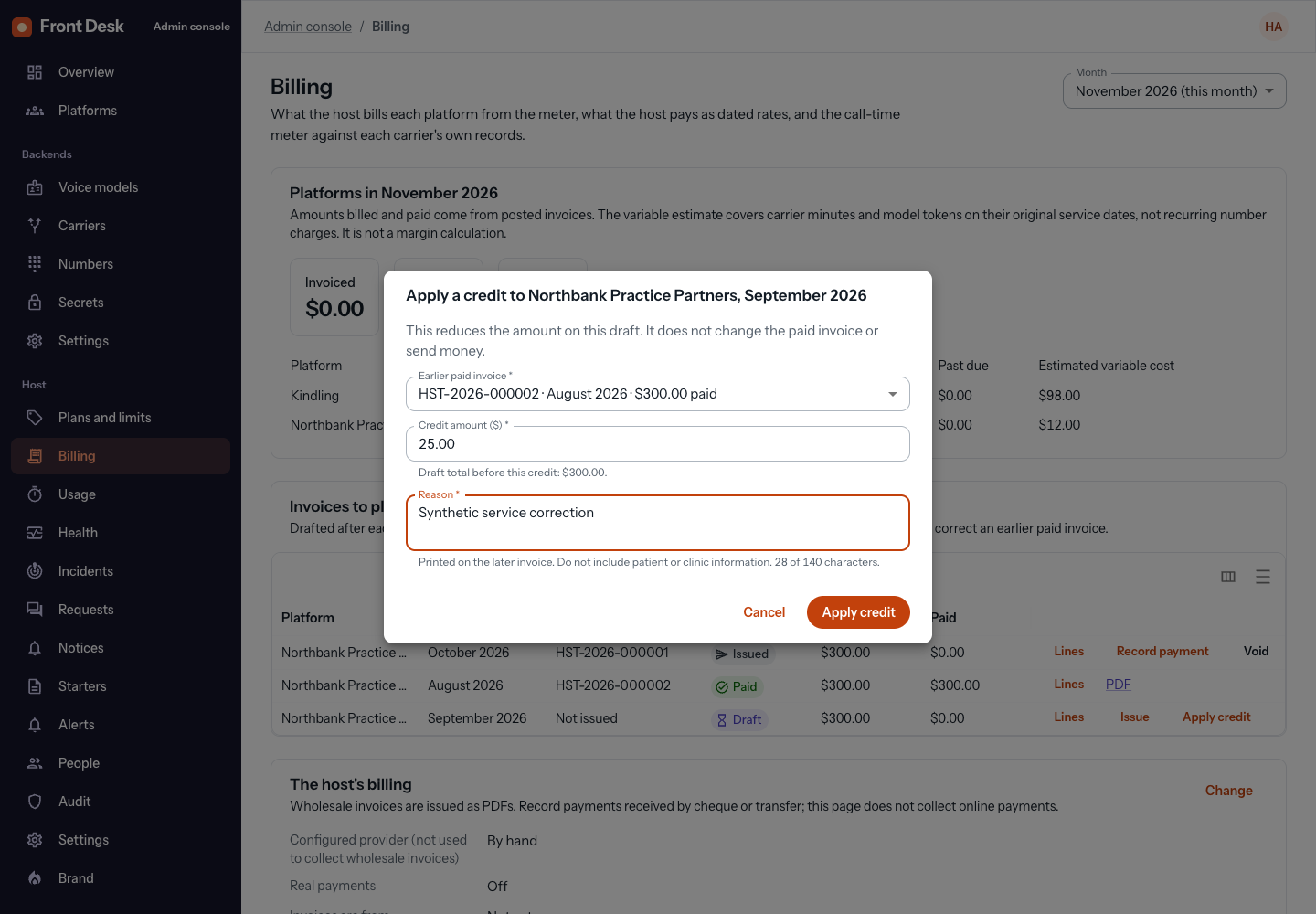
- As host admin, locate the later, positive draft for the same platform and select Apply credit. Select a numbered, fully paid manual invoice from an earlier month. If the screen says No earlier paid invoice, close it and verify the platform and payment state rather than adding a credit to an unrelated invoice.
- Enter a positive amount within the remaining eligible credit and draft balance. Enter a reason fit to print on the later invoice: no patient or clinic details. Complete fresh sign-in if needed.
- Check Lines and the revised draft total before issuance. A credit reduces the later draft; it does not send money, edit the original paid invoice, or change a platform’s clinic bills. After a refused or uncertain result, recheck the draft before submitting a different amount or another correction.