 Kindling
Host administration
Request, review and end support access
Open narrowly scoped access, see what the support view shows, and know how to handle a refusal or expiration.
Who it’s for Host administrators, host support and agency owners
On this page
Choose a policy and open or request access
A host admin sets How support access opens in Admin console → Platforms → platform → Support access. Choose The host opens it, and the owners are told or An owner approves it first. Changing the policy is distinct from opening an access.
- As host admin or host support, enter a support reason and, when only one clinic is relevant, its ID in One clinic only. Choose Open access or Ask for access according to the displayed policy. Do not include patient details in the reason.
- Read the new row: Requested is not Open. Initial access is read-only and lasts four hours once open. The row shows state, level, opener, reason and end time. On a closed platform the form cannot open new access.
- For approval-first, an agency owner opens Agency console → Platform → Support access and reviews the reason and scope. Approve opens read access; Refuse declines the request and offers an optional note for the host. A refusal is not a reason to broaden the request or try another person’s access.
Open the view and recognize denial
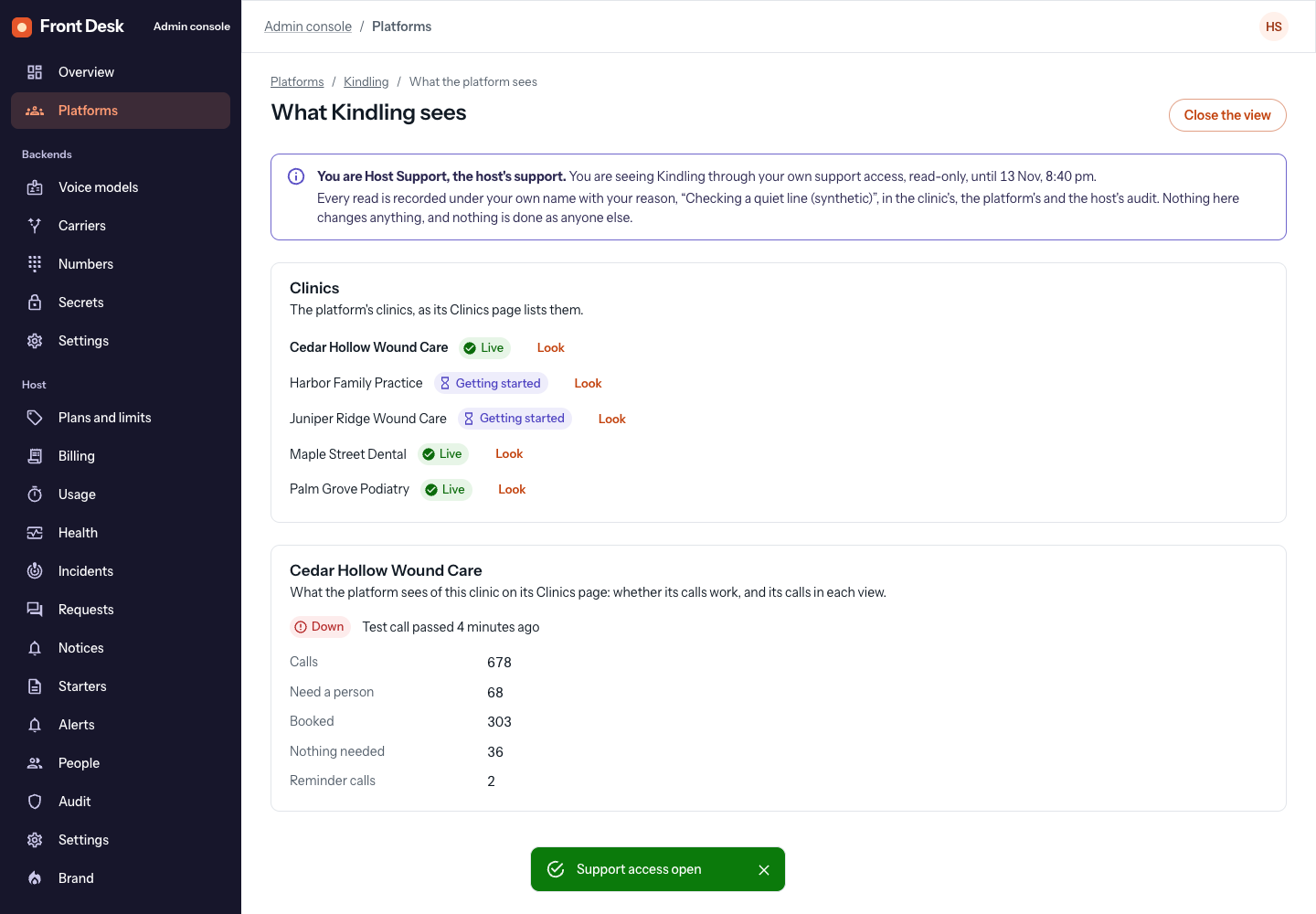
For an Open row, Clinics shows covered clinic names and states to the opener or a host admin. View is for the opener only, including when another host admin can see the list. In the view, the banner identifies the signed-in host person, reason and end time. Pick a covered clinic to check service status and counts by call view, not individual calls. Retry a failed status or count load; a retry does not reopen an ended access.
If the screen says This view is closed, use Close the view and check the access row. Confirm you opened it yourself and it is still Open for this platform. A pending request, refused request, another person’s session or expired access does not give you a view. Return to the normal scoped request process if support is still needed.
Extend once, ask to change or end
- On your open access, Extend asks for a reason and is available once. Confirm the new end time on the row.
- For an open Read row without a pending change, select Ask to change and give a reason. The owner uses Allow changes or Refuse on the agency’s Support access page. Check the returned level and request state. Approval does not turn the read-only View into an editor.
- Use End when the work is done. The opener or a host admin can end a host request or access as permitted; the platform owner can use End access on the agency side. Verify it is no longer open and leave the view. If an owner refuses a change request, the existing read access can remain open; check the row and end it separately if needed.