 Kindling
Clinic workspace
Schedules and bookings
Identify which system owns appointments, configure visit rules and confirm a booking only after the book does.
Who it’s for Clinic front desk, administrators and agency operators
On this page
Identify the book of record
Open Schedule, then Schedule settings → Where the book is kept. This setting is per clinic. The agency changes it after a fresh sign-in; pending or future visits can prevent leaving the existing book.
- Kindling’s schedule: authorized staff can book and manage visits here. The agent can book only visit types configured to allow it, and calls a visit booked only once the schedule confirms it.
- The clinic’s own system, by hand: the agent takes a request and does not offer a time. Staff book or make changes in their own system first. Use Record the booking on the follow-up with the date and time and an optional outside reference; Kindling keeps a labeled copy.
- The clinic’s own system, connected: Schedule is a read-only calendar; Book a time on an eligible follow-up goes through the connection. A lost response remains unresolved while the system checks the first attempt. It is not permission to try the same booking a second time.
Set visit and scheduling rules
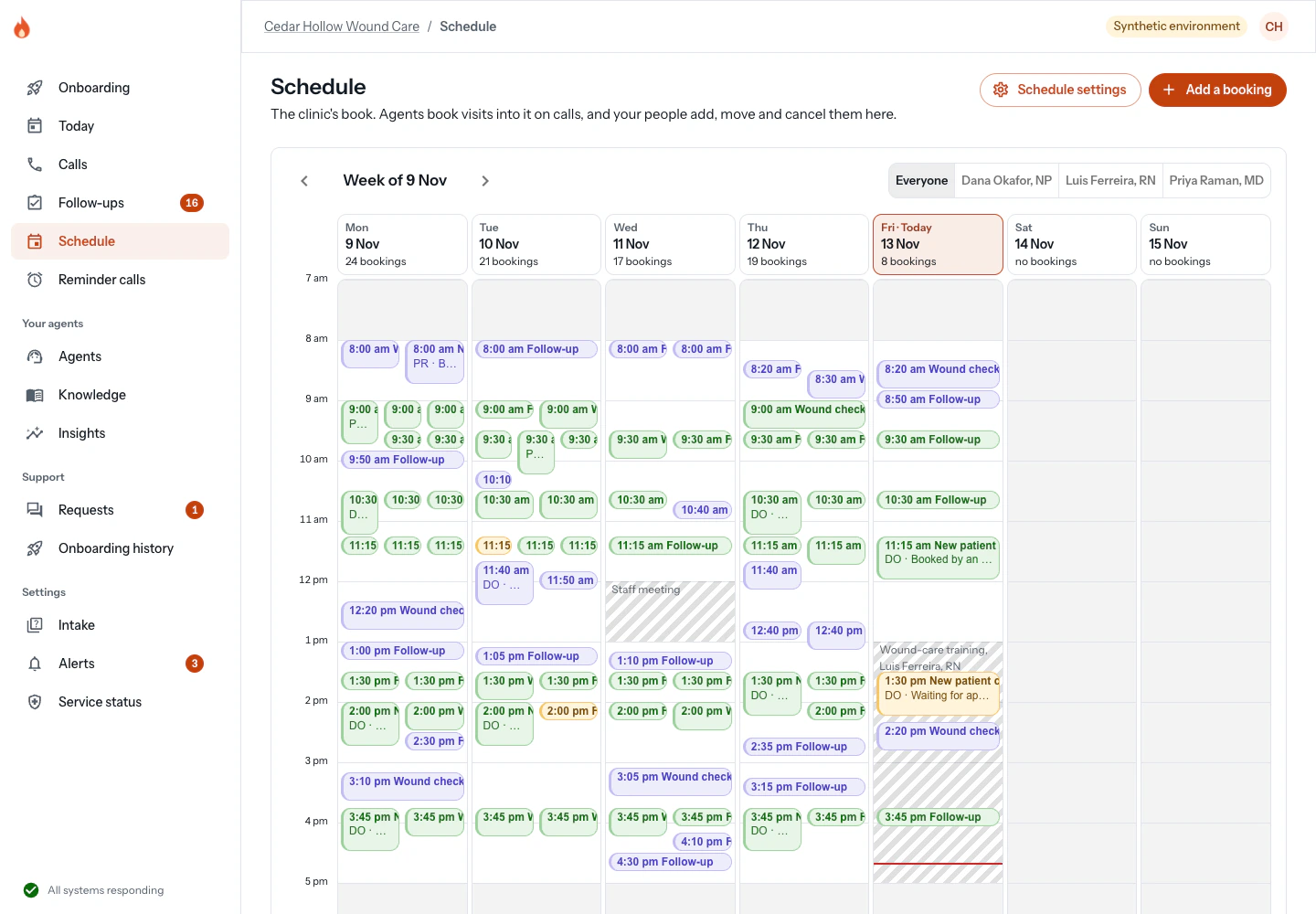
In Schedule settings, define visit types, lengths and whether the agent can book, only request or not offer them. Configure clinicians’ hours, closures, alternate hours, gaps and minimum notice. After a rule change, check Visits that break a rule for existing visits that now fall outside it; rules do not silently rewrite those visits.
The Schedule shows bookings, visits waiting for approval and blocked times. Open a visit for its History, including the original call or follow-up, changes, reminder answers and attendance. For Kindling’s book, authorized staff can move, cancel or confirm a visit, and mark Kept or Did not come after it starts. Blocking time and editing staff hours require the appropriate admin permissions.
Settle a booking request
- Open the linked Follow-up. If a visit is waiting for approval, claim it and choose Book a time. The form opens on the requested time or the first open time if that has passed.
- Pick an eligible clinician and time. Book visit settles the existing visit. If the time was taken or is no longer valid, read the refusal and pick an eligible alternative.
- For the Kindling or connected book, verify that the visit shows confirmed, then record the follow-up result. For the staff-managed outside book, use Record the booking after you have confirmed it outside Kindling. A successful recording closes that follow-up as Booked; do not log a second resolution.
Where enabled, a caller can move or cancel an eligible future visit that belongs to them. If the visit is too close to its start, the policy disallows it, or the booking system cannot confirm the change, the agent leaves work for staff instead.
Open, book or change a visit on Kindling’s calendar
- Clinic staff and admins: in Schedule choose the day or week, use Today to jump back, and filter whose bookings you want to see. Check Waiting for approval for requested visits and use Open to inspect a visit.
- Use Add a booking for a new visit in Kindling’s book. Select the visit type, clinician and time and fill the requested details; review the appointment after Book visit. If you came from a follow-up, use its Book a time instead so the existing request and the visit remain linked.
- Open a visit to see its History and source call or follow-up. Confirm a request, move to an eligible time or cancel using the available controls. For a past visit mark Kept or Did not come once its start time has passed; this affects reporting.
- A clinic admin can add or remove a block from Blocked time this week. Choose the clinician, time and reason when creating a block; removing one reopens that time if other rules allow. Sample calendars are offered only for eligible fictional clinics; creating samples changes the synthetic schedule.
Record, correct or verify an outside booking
- In Schedule settings → Where the book is kept, check which book and mode apply before taking action. Users who can open Schedule settings can see the mode, and for a connection the last good read and write. The agency can choose Change, name the external system if applicable, provide a reason and sign in again. Waiting bookings or future visits in the old book prevent a switch. Do not treat the Kindling calendar as the source of truth when the clinic keeps its own book.
- For an outside book managed by hand, the caller’s request goes to Follow-ups without a promised time. First book in the outside system. From the follow-up use Record the booking with the confirmed visit type, date, time and optional outside reference. A successful save closes the linked follow-up as Booked. Do not log a second resolution. The Schedule shows a copy, not a second booking. If the outside booking moves or is cancelled, use Change or Record cancellation on its copy after changing it in the outside book.
- For a connected book the calendar is read-only and staff move, cancel or block time in the outside system. On the follow-up choose Book a time, enter the visit type, day and time, and choose Book it. The connected system decides whether the time is open. Once requested, pending and uncertain results are not confirmations: check the existing follow-up or booking status and allow reconciliation rather than making a second request. For a definite refusal, read the error and pick an eligible alternative.
- Only the book of record can confirm. A local or connected booking does not automatically close its follow-up; check the linked status and resolve the follow-up separately when needed. A manual copy is not a live connection, and simulated connection behavior does not show that an outside system is connected in your environment.
What callers can book, move or cancel by phone
- On an eligible configured line, a caller can ask the agent to book, change or cancel a visit without a keypad menu. The agent identifies itself as automated if asked and the caller can request a person. The clinic’s visit type and book decide whether the agent can offer times, request a booking for staff, or decline it. Intake can request the clinic’s configured fields, but does not verify insurance eligibility.
- For an eligible future visit on Kindling’s book, the agent can look up only visits associated with the caller after the clinic’s identity and eligibility checks. If ownership cannot be safely matched, the agent does not disclose another person’s appointment. The agent may move only to an offered time for the same visit type.
- If the clinic disables agent changes, the visit type only allows requests or the appointment is too close, the agent cannot change it. It leaves work for staff instead. A refused cancellation is still booked; a lost response is not confirmation. Check the linked visit and Follow-ups rather than acting on the headline alone.
- The agent can only say a visit was booked, moved or cancelled once the schedule confirms it. A reminder call can ask to confirm or change its own appointment under the same availability and policy checks. None of these actions implies that a transcript or recording exists.
Maintain visit types, hours and booking policies
- Clinic admins and agency operators: open Schedule → Schedule settings. Staff can read settings. A group manager can use Settings → Visit types and schedule to edit visit types, closures and booking rules, but cannot see patient appointments or individual clinician hours.
- Use Add a visit type or open an existing type. Set its name, What the agent says, Length in minutes (5 to 240) and whether the agent can book, request or not offer it. A duration change applies to new bookings; existing visits keep their scheduled length. Turning a type off or archiving it does not delete those visits.
- Clinic admins and agency operators manage individual working hours and eligible visit types in Clinicians and hours. If you remove a clinician here, existing visits stay on the schedule without a clinician and the agent stops offering that clinician’s time. Review those existing visits rather than assuming they were reassigned.
- Use Closed days and other hours for a clinic or clinician exception. In Gaps and notice, set the gap, the agent’s shortest notice and furthest booking day, and whether the agent may change a caller’s own visit. Staff booking in the local calendar are not bound by the agent’s shortest-notice or furthest-day rules. A connected outside system supplies times; a by-hand setup converts offered types to requests.
- If a rule changes, open Visits that break a rule, then open each affected visit to review it. Existing visits are not moved automatically. Changes to caller-facing wording and intake are separate in Settings → Clinic details and Settings → Intake.