 Kindling
Agency console
Numbers, answering rules and line tests
Separate number inventory from a working inbound line, decide which agent answers and know what happens on fallback.
Who it’s for Agency voice operators and clinic administrators
On this page
Find or request a number
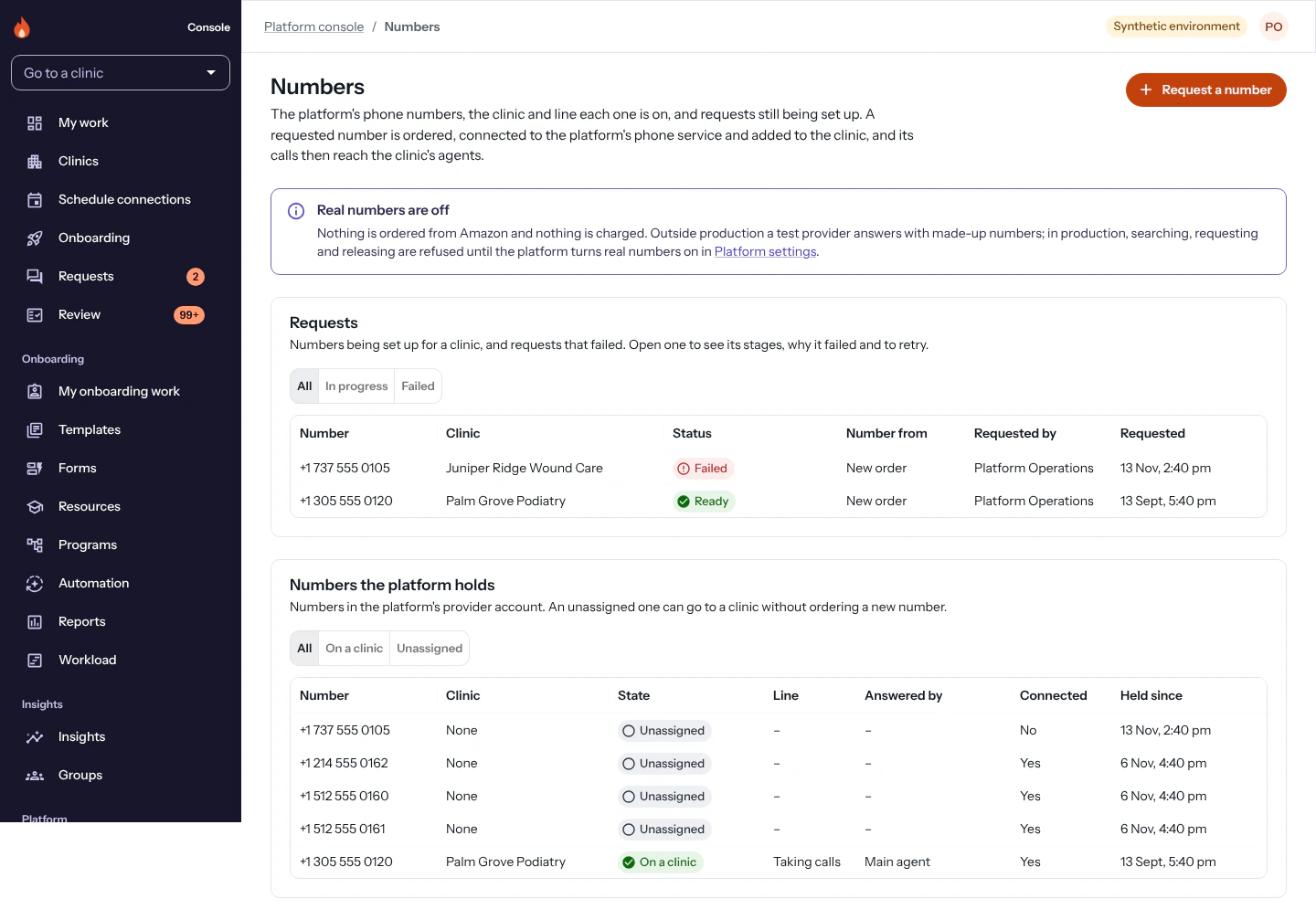
Use Platform → Numbers or the clinic’s Setup → Phone numbers. Choose the clinic. When permitted, search the offered inventory or choose a number the platform already holds. Requesting a number is a distinct action requiring fresh sign-in. Track ordering, connecting and clinic assignment; if an order fails, read the reason before retrying or removing it.
Choose who answers
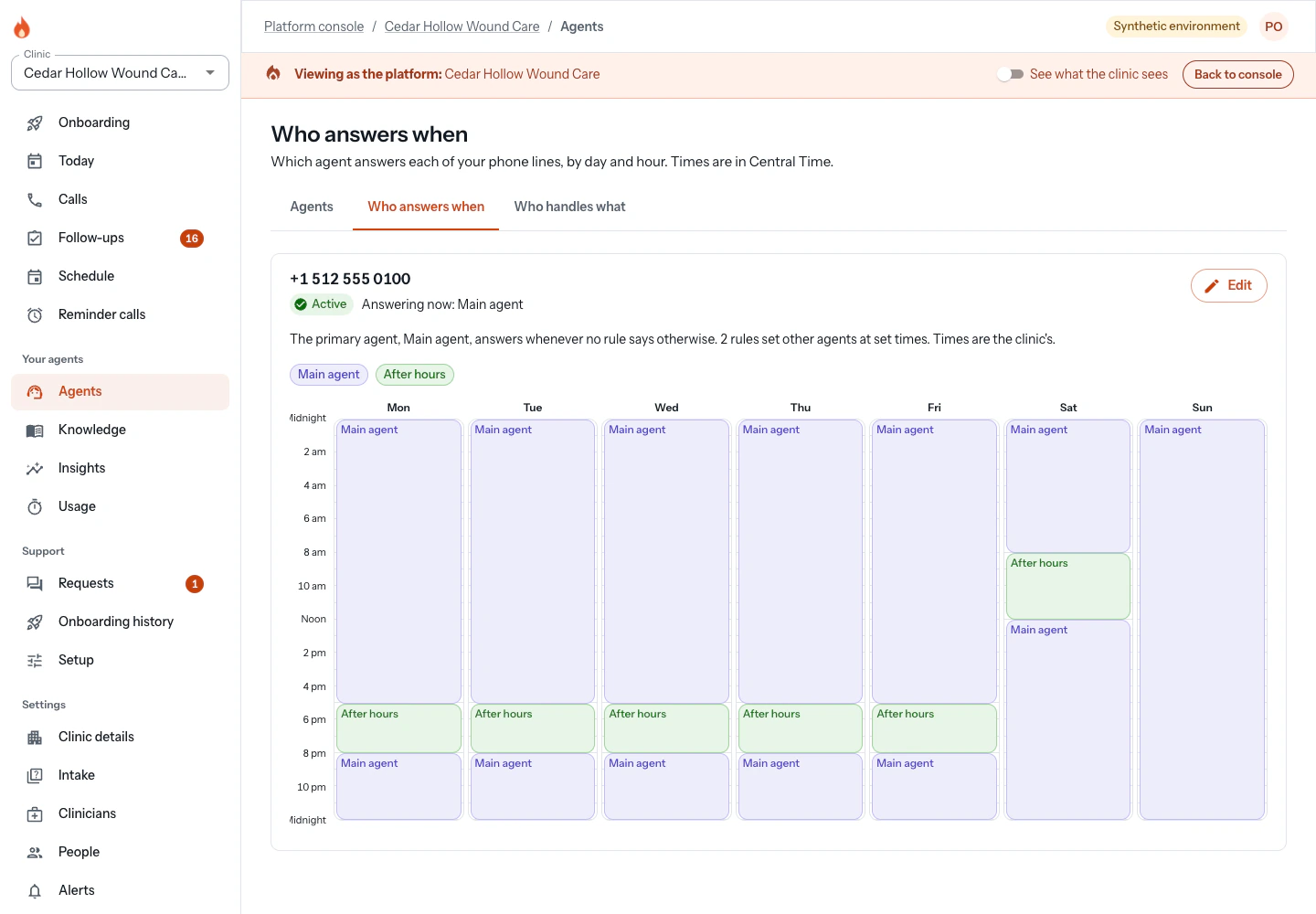
- Agency admins: in the clinic’s Agents → Who answers when, find the ordinary line and choose Edit. Select its Default agent, or leave it empty to use the clinic’s primary agent. Use a currently published inbound agent; a draft, archived agent or reminder-only agent is not eligible.
- Choose Add rule, choose Days and set Start, End and Agent. Use Remove to delete an obsolete row. Keep at most 14 rules, with at least one day per rule, start before end on the same day and no overlapping times on a shared day. One rule cannot cross midnight. Times are the clinic’s local time. Ask the agency for an approved setup if the editor cannot represent the intended window.
- Review Preview for the whole week, including gaps that use the default. Fix marked rows or unavailable agents before choosing Save. A saved rule affects subsequent calls, not one already underway. This editor is not used to assign or prove a managed Telnyx line.
- Use Who handles what to review where a caller goes when staff are needed. Check Hand-off numbers separately; the phone agent cannot choose arbitrary transfer numbers.
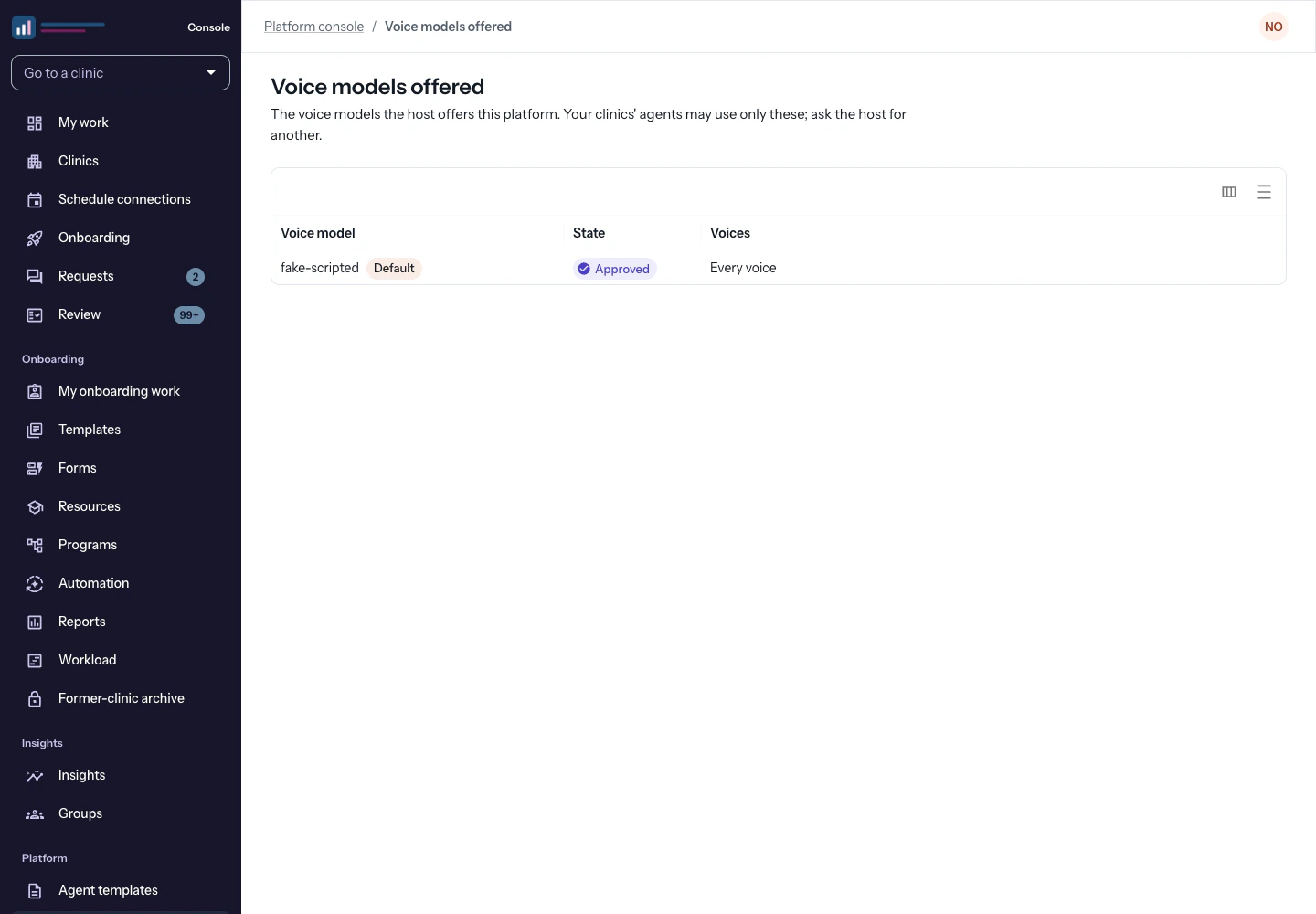
For shared inbound routing, use Platform → Central line. When enabled, a routing receptionist finds an eligible participating clinic by its name or ZIP and hands the call to that clinic’s agent. This is not evidence that the clinic’s directly dialed line works. Use Agent templates to prepare, preview and approve versions of reusable instructions. Voice models offered is the read-only list of host-approved choices.
Prove the line before relying on it
- Open the clinic’s Settings → Service status or inspect its Lines in the console. Distinguish Proven, Configured, not yet proven, Needs fixing, On staff and Not in use.
- On an authorized test line, use Test this line to open a waiting window, then call it from the listed test phone. The app does not place a call for you. Review the expiry time and stage marks; use I heard the agent only after hearing it. If a test is still waiting and no longer needed, use Cancel the test. If it expires or fails, read the first failed stage and its likely cause, correct the setup, then start a new authorized test. A missing proof is not by itself a failed agent.
- If the authorized team puts a line On staff, the confirmation shows what the next caller will get. Where available, a recent sign-in and reason are required. Only the agency can give the line back to the agent, which clears its proof and calls for a new test.