 Kindling
Clinic workspace
Use the workspace assistant
Navigate and propose supported changes without giving the assistant extra access or confusing it with the phone agent.
Who it’s for Authorized clinic and agency users
On this page
Open the assistant in the workspace you mean
When the workspace assistant is enabled for your role, open its dock or press Alt+Shift+K. It is available in eligible clinic and agency workspaces, not group-only views or the host console. Check the workspace named in the dock before asking about a record. Quiet mode accepts typed requests and needs no microphone; Voice uses audio. Changing modes starts a new session.
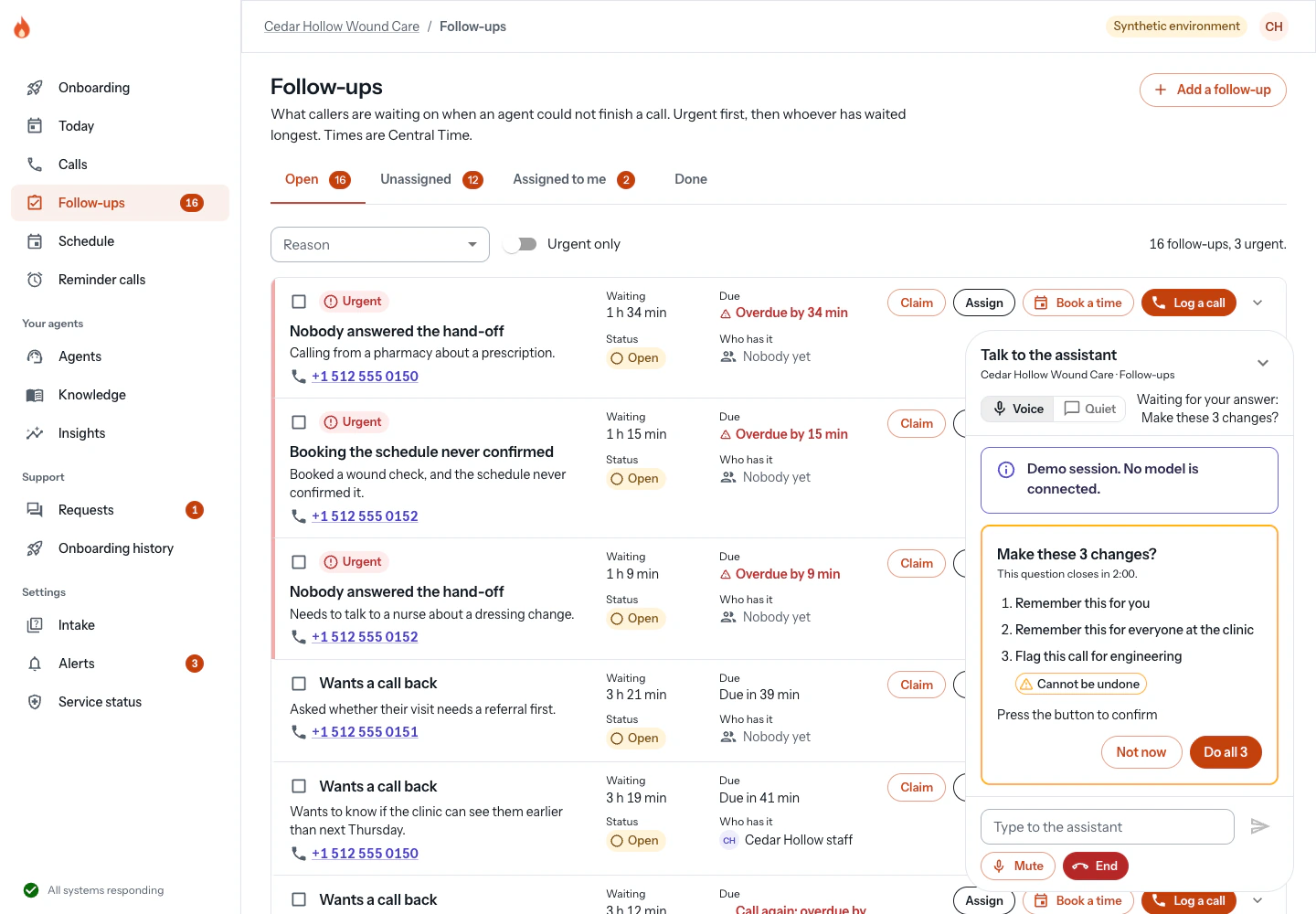
The assistant can navigate, find records and act only where your own role and the assistant’s settings allow it. Clinic examples include finding open follow-ups, reading a day’s schedule, editing a supported agent draft field or finding an onboarding step. Agency examples include opening a clinic or project, reading the work board or taking eligible support work.
Review what will change
- Name the record or use the selected row when the screen supports it. Check that the proposed action points to the right clinic and record.
- Some low-impact changes apply immediately; other changes show a confirmation card with the exact action and whether it can be undone. Confirm on the card, or say yes in a later turn if that card allows it. Some cards require the button.
- Open the account menu’s assistant page for History and Sessions. Use Undo where offered; if the underlying field changed after the assistant wrote it, review the conflict instead of overwriting it.
Control memory and how the assistant works
Open Memory for your own preferences and workspace notes where permitted. You can review, edit or delete them; do not store patient details there. Authorized administrators can review Settings and Figures, change who can use the assistant or make it read-only. The dashboard assistant is separate from the caller-facing phone agent and from the private agent deployment tools.
Work in the dock without changing scope
- Open the floating assistant or press Alt+Shift+K, review Before you start if shown, and verify the clinic and page name. Keep it saves the preferred Voice or Quiet mode. Changing the mode starts a new session; navigation within the same workspace can keep the session open.
- In Quiet, type requests without a microphone. In Voice, Continue opens the microphone permission flow. If access is blocked or the microphone is unavailable, choose Type instead, or fix the browser permission or device and choose Try again.
- Name the record or select the permitted item on the page. A group-only clinic view and the host console do not have the clinic dock. Authorized agency owners and admins can ask the assistant to open an eligible clinic page or move between the clinic and their agency console. Name the destination and check Moving to before acting there.
- On a successful move, the old session ends as moved and a new session starts in the destination; the dock stays open. If the destination does not open or does not let the assistant start, choose Go back to return or End to stop. A move does not grant clinic access.
- For a read, check the date, role and selected clinic in the response. For an offered change, read each item on the confirmation card, note which cannot be undone and cancel with Not now when it is not right. Spoken yes works only when the card says it does; use the button when required. A timed-out or stale proposal must be prepared again.
- Examples within clinic permissions: navigate to a record, read Today, Calls, Schedule, Reminders or Insights, take a follow-up, log an attempt, prepare supported knowledge or draft edits, or work an assigned shared onboarding step. The assistant does not make an unavailable screen action eligible; it can open the screen for you instead.
Inspect an assistant change or undo it when allowed
- Open the account menu → assistant and choose History. Filter by date, person, action, record, session or state where offered. Staff see their own changes, auditors see permitted facts, and admins see the allowed workspace history. Open a row to review who changed what, how it was confirmed and the current state.
- The before-values of an eligible change expire after 30 days; facts such as who, when and what changed stay. Auditors see permitted facts only, not the values or an Undo action. An authorized agency operator must choose Show contents to read a clinic change’s details; that opening is recorded in the clinic’s Activity as an agency read.
- If Undo is offered, review what it writes back. A newer edit to the same field can refuse the undo and show the before, changed and current values. Undo all appears for eligible grouped changes. An expired or irreversible change is not recovered by pressing Undo.
- In Sessions, open the relevant session to find its change history. In Memory, review, edit or remove your permitted preferences and workspace notes; do not put patient details there. Authorized admins use Settings and Figures to review availability, change who can use it or make it read-only. These records are separate from phone calls and agent drafts.
Read a proposal before deciding
- Some reversible actions, such as claiming your own follow-up, apply immediately and appear in Changes. Other actions propose a change first. Check each record, what would change, whether it can be undone and the time remaining.
- If a card says Say yes or press the button, answer in a later turn or choose the action button. Press the button to confirm means exactly that; a spoken yes does not submit it. Not now cancels it. For a set of changes review each row and its own reversibility.
- If the card closes as expired, replaced or no longer current, review and ask again instead of treating it as accepted. After confirmation check Changes and the affected screen. The source may be newer than the proposal; stale proposals are not permission to overwrite it.
- Undo only where offered. A later edit may cause a conflict instead of writing. Undoing a claimed follow-up can release ownership without deleting an attempt logged later. Undoing a handover returns only eligible items still held by the recipient; it does not erase the handover note.
Manage assistant memory, settings and figures
- In Memory use About you to add a preference, a supported shortcut phrase or a note. Use History for earlier versions, Restore for a held value where allowed, or Delete. Forget everything about you asks for explicit typed confirmation and affects only your personal memory.
- Team memory is separate from personal memory. Clinic admins or agency operators with the applicable workspace permission can edit team notes; other permitted users can read them. In the dock, Remembered shows the saved item with Undo and See all. Do not store caller or patient details in any memory.
- In Settings, clinic admins can set The assistant is on here, Who can use it, What it may do and the policy for saying patient details aloud versus showing references. A platform-wide off or read-only restriction takes precedence; existing settings are retained and changes can end open sessions. Agency operators use their platform settings for the platform-wide controls.
- Authorized agency admins: in Platform → Settings → Voice assistant, choose The console’s provider profile for console sessions. Without a selected profile, the console’s assistant button is hidden. Clinic assistant availability is configured separately.
- In the same settings, Keep what was asked, for console changes defaults to on. When enabled, an eligible console change that touches no clinic may show What was asked in History for 30 days, limited to 200 characters. Turning the setting off keeps change facts but stops saving new request summaries. A change to a clinic record never keeps the words of the request, even if made from the agency console.
- In Figures, change the range and where available the workspace. Read sessions, minutes, changes, undos, unconfirmed proposals and refusals separately. In Sessions, How it ended distinguishes person, time or action limit, switch or access change, closing the page, a move or failure. A session record is not an audio recording.