 Kindling
Agency console
Add and onboard a clinic
Create a clinic from a reusable setup, run its shared project and keep go-live a separate, reviewed decision.
Who it’s for Agency implementation leads and operators
On this page
Create the clinic and recover incomplete setup
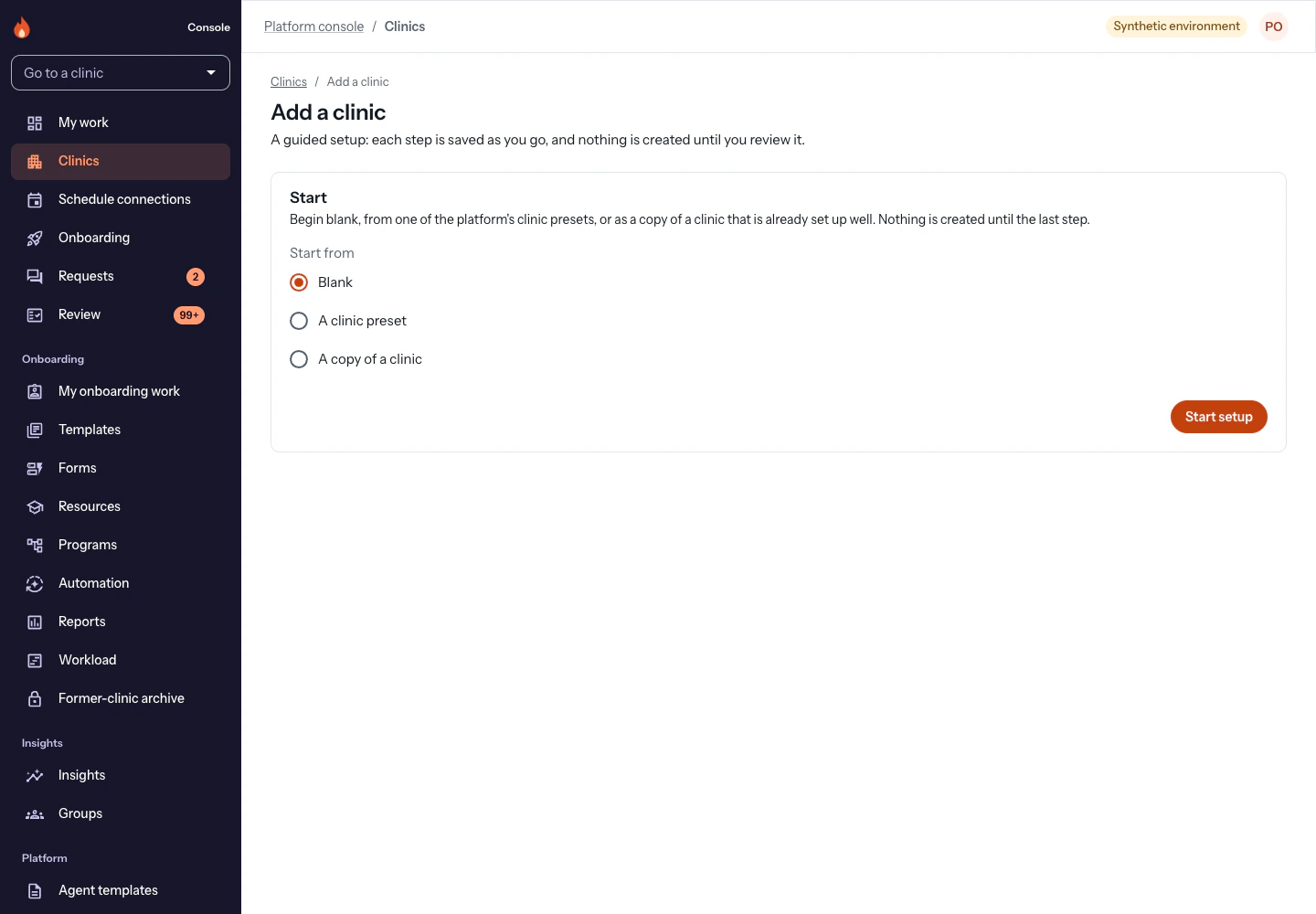
Synthetic dashboardThe guided setup starts before any launch or carrier approval.
Full size - Open Clinics → Add a clinic. Start blank, from a clinic preset or by copying selected setup parts of another clinic. Use Platform → Clinic presets to create, validate and archive reusable presets.
- Set clinic and payer details, people, practice and specialty rules, agents and knowledge. A voice clinic also needs numbers and call handling. Where available, choose a published onboarding plan template, its owner, target date and whether to make it visible to the clinic.
- Save and close or hand the draft to a colleague if more work is needed. Under Review and create, resolve validation or duplicate warnings and check what the wizard will leave for later. Creation requires a fresh sign-in.
- Follow the result of each step on the progress page. Waiting can mean a number order is pending. If a step fails, read its reason and continue when repaired, or use Skip with a reason where allowed.
Run the shared onboarding project
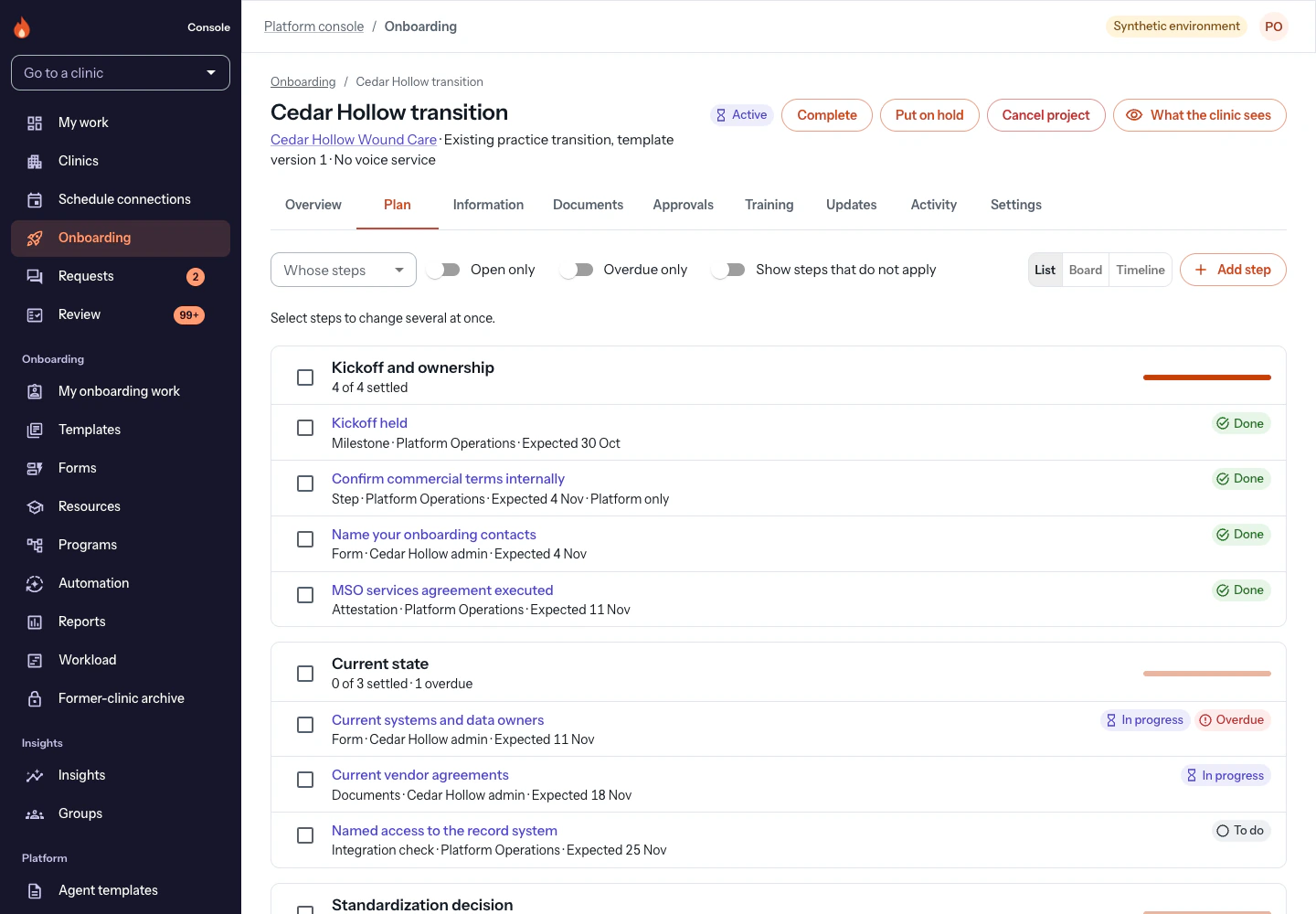
Synthetic dashboardThe seeded Cedar Hollow transition project shows how an agency tracks its part of clinic onboarding.
Full size When projects are enabled, open Onboarding → Projects. Start a project from a published template or open the one created by the setup wizard. The plan shows step owners, dates, dependencies and blockers. Review changes to dates, baseline, project state or portal settings separately from the configured phone service.
- Use My onboarding work and Waiting for review to find overdue steps and submitted material. In Information, accept answers or send them back with a note. Preview accepted answers before applying them to clinic settings.
- In Documents, request an upload, review the checked file, or create and lock a shared document. In Approvals, request and record a decision; when recording for a clinic approver, give the reason the clinic will see. In Training, assign, verify or waive a training item with a reason.
- Manage reusable plan Templates, Forms and Resources separately from Agent templates and Clinic presets. Use Programs to group projects, Workload to plan staffing and unavailable weeks, Reports for portfolio progress, and Automation to review rules, test them without applying changes and check nudge settings. Use Notifications and its preferences for your own updates.
Verify readiness before any activation
- Open Onboarding → Voice go-live when projects are enabled, or Onboarding when they are off. Open the clinic’s Setup and review unmet checks for lines, agents, fallback and caller information.
- Have the clinic admin complete its Getting started review and record its approval. Check that each required line has current proof and that the listening exercise matches the eligible published release.
- Review Going live separately. A completed checklist, a published agent and a clinic approval are not Make live. Until activation, eligible listed test phones can reach the agent; ordinary callers hear the closed message.
Former-clinic archive remains available to authorized users when current projects are off. It is a read-only, limited view of an eligible moved clinic’s old onboarding records, not a route back into its current workspace.